Activate PastaHR for selected job requisitions in Workday by assigning them a flow.
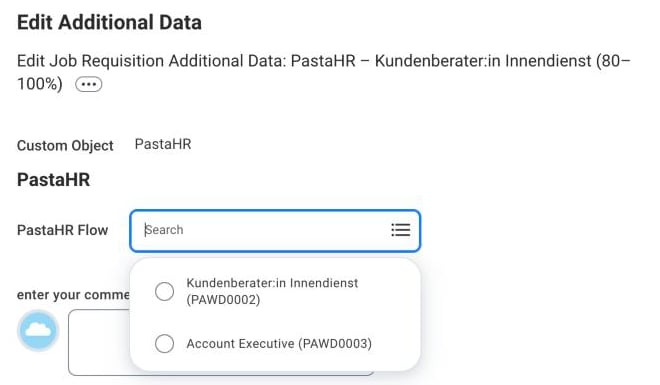
With this setup, recruiters decide directly in Workday for which job requisitions PastaHR is active. To activate PastaHR for a position, they select a flow from a dropdown on the job requisition.
Recruiters activate PastaHR by selecting a flow on the job requisition
PastaHR also processes applications that arrive directly in Workday, for example through job boards or your Workday career site. PastaHR evaluates them with JobFit, lets you invite the candidates to book an interview and lets you start a chat with them.For this, PastaHR needs to know which flow belongs to the job requisition: the flow defines the JobFit criteria, the language and the settings that apply to the candidates. Applications for a job requisition without a flow are not processed by PastaHR, so they get no JobFit score.
Processing applications from your ATS is activated per customer. Contact support@pastahr.com to enable it.
Activate PastaHR for a job requisition (for recruiters)
1
Open the job requisition
Open the job requisition in Workday and click the ⋯ (related actions) next to its title.
2
Edit the additional data
Choose Additional Data → Edit Effective-Dated Custom Object, keep today’s date as Effective Date and click OK.
3
Choose the flow
In the PastaHR section, select the flow under PastaHR Flow and click Submit. If Workday shows further additional data steps afterwards, complete or skip them as usual.
To change the flow later, repeat these steps and pick a different one.
The setup takes about 20 minutes and is done once. You need permission to create custom objects, calculated fields and integration systems, and to edit business process definitions.
Your Workday integration with PastaHR must already be active. If you’re not sure, contact support@pastahr.com.
1
Allow PastaHR to maintain the flow list
PastaHR creates a custom list called PastaHR Flows in your tenant and adds your flows to it. It does this with the integration system user (ISU) you created when you connected Workday to PastaHR. You chose its name yourself at that time.To find the ISU, type View API Clients in the search bar and open the tab API Clients for Integrations. The column Integration System User of the PastaHR API client shows its name. Its security group usually has the same name.Workday secures the web service that maintains custom lists (Put Custom List) with the domain Custom Object Management in the functional area System. Grant the ISU access to it:
Type Maintain Permissions for Security Group in the search bar and select the ISU’s security group.
Under Domain Security Policy Permissions, add Custom Object Management with View and Modify (Get and Put).
Run Activate Pending Security Policy Changes.
Check that the PastaHR API client includes System under Scope (Functional Areas). If it doesn’t, add it with Edit API Client for Integrations.
Let support@pastahr.com know. We create the list PastaHR Flows in your tenant and fill it with your flows.
To check which domain secures the web service in your tenant, type View Security for Securable Item in the search bar and search for Put Custom List.
Wait for our confirmation before you continue: you need the list in step 3.
2
Create the custom object
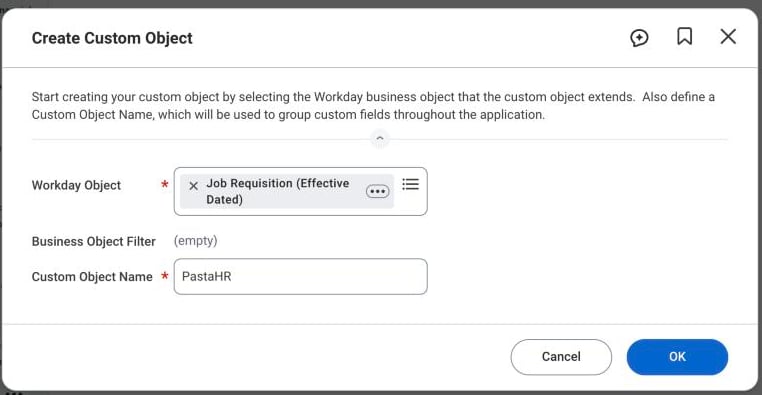
Type Create Custom Object in the search bar and set:
Field
Value
Workday Object
Job Requisition (Effective Dated)
Custom Object Name
PastaHR
Click OK and continue with these settings:
Field
Value
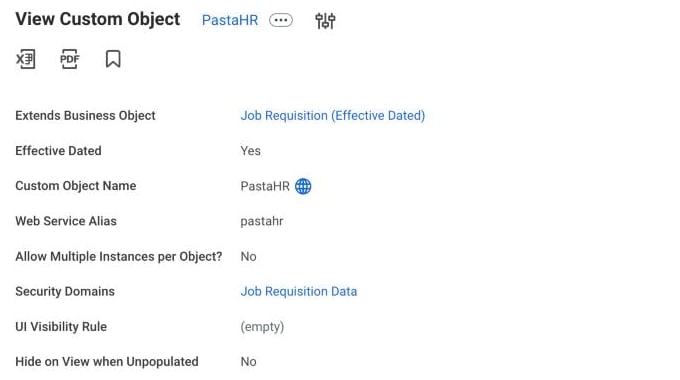
Web Service Alias
pastahr
Allow Multiple Instances per Object?
No
3
Add the flow dropdown
In the same task, add one field under Field Definitions:
Field
Value
Field Label
PastaHR Flow
Field Type
PastaHR Flows (the list from step 1)
Web Service Alias (under Details)
pastahrFlow
Under Permissions, set the Domain to Job Requisition Data. Click OK and confirm the activation.
The finished custom object
4
Show the dropdown to recruiters
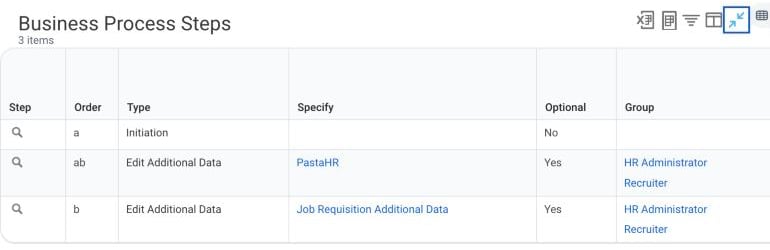
Workday edits this kind of data through the business process Edit Job Requisition Additional Data. Add a step for the new object:
Type Business Process Definitions in the search bar and open Edit Job Requisition Additional Data. If you have several definitions (e.g. one per organization), repeat this for each definition your recruiters use.
Open the related actions and choose Business Process → Edit Definition.
Add a row right after Initiation (e.g. order ab):
Column
Value
Type
Edit Additional Data
Specify
PastaHR
Optional
Yes
Group
The roles that should set the flow, e.g. Recruiter and HR Administrator
This step only appears when someone edits the additional data of a requisition. Creating requisitions is not affected.
5
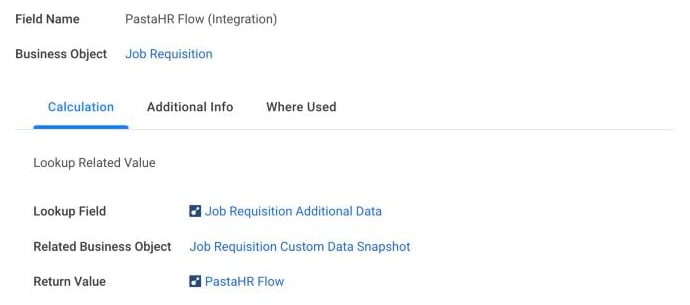
Create the calculated field
Integrations can only read fields that sit directly on the job requisition. A calculated field passes the flow selection through. Type Create Calculated Field in the search bar and set:
Field
Value
Field Name
PastaHR Flow (Integration)
Business Object
Job Requisition
Function
Lookup Related Value
Lookup Field
Job Requisition Additional Data
Return Value
PastaHR Flow
6
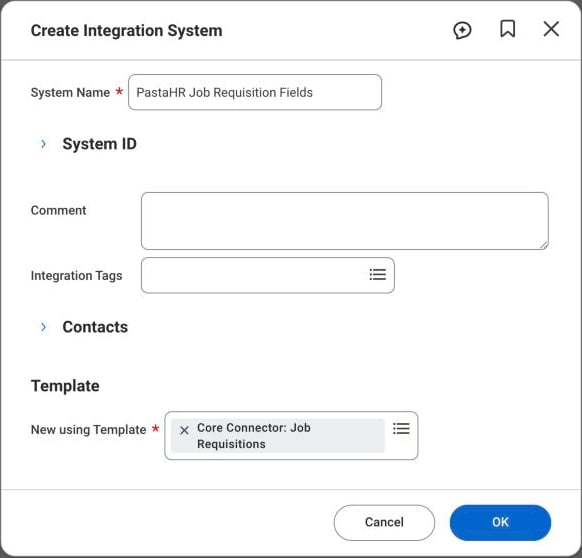
Create the integration system
Type Create Integration System in the search bar and set:
Field
Value
System Name
PastaHR Job Requisition Fields
New using Template
Core Connector: Job Requisitions
Workday may later show the warning that the attribute Version is “Required for Launch”. You can ignore it: PastaHR only reads the field, the integration is never launched.
7
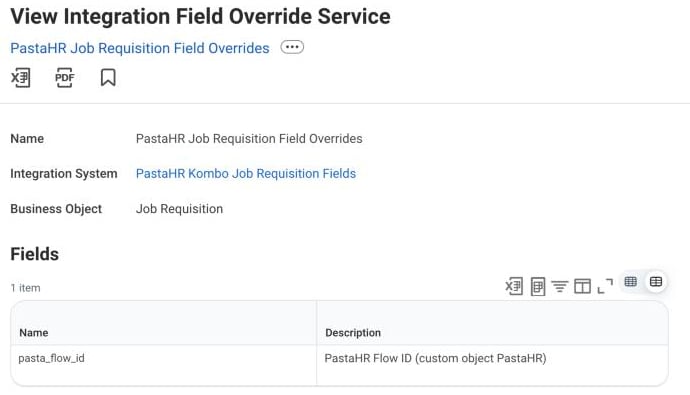
Add the field override service
Workday opens Configure Integration Services after the previous step. Under Custom Integration Services, click +, open the prompt and choose Create → Create Integration Field Override Service:
Field
Value
Name
PastaHR Job Requisition Field Overrides
Business Object
Job Requisition
Fields → Name
pasta_flow_id
Click OK in both dialogs.
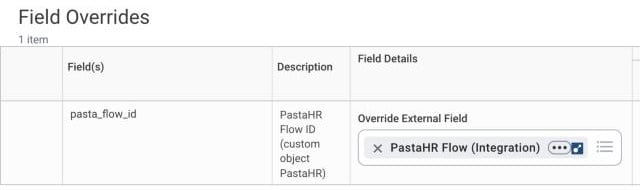
8
Connect the field
Type View Integration System in the search bar and open PastaHR Job Requisition Fields. Open the related actions and choose Integration System → Configure Integration Field Overrides. Next to pasta_flow_id, set Override External Field to PastaHR Flow (Integration) and click OK.
9
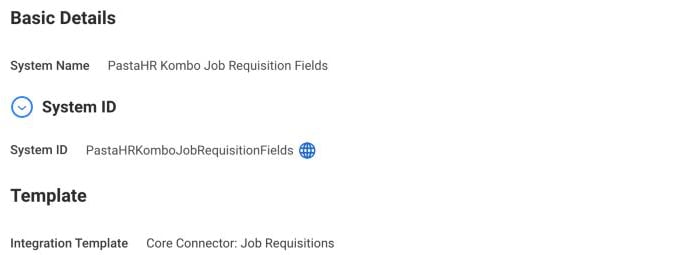
Send us the System ID
On the same integration system, expand System ID and send the value to support@pastahr.com. We activate the connection and confirm when your recruiters can start activating PastaHR for their job requisitions.
New flows are not added automatically. Let support@pastahr.com know which flow you need and we add it to the list. The same applies if you rename or no longer use a flow.
Why are the flow IDs shown in brackets?
Each entry shows the flow title and its ID, e.g. Account Executive (PAWD0003). The ID stays the same even if the flow title changes, so the link to the job keeps working.
Can we use different names for the objects and fields?
Labels such as PastaHR Flow can be renamed. Keep the field name pasta_flow_id in the field override service and the list PastaHR Flows as created by us, because PastaHR relies on them.
Can we add the flow to the JobFit custom object?
No. The custom object for JobFit in Workday belongs to the job application, because every application has its own score. The flow belongs to the job requisition. Workday attaches each custom object to exactly one business object, so you need two separate custom objects.
Why is a calculated field needed?
Workday stores custom fields of a job requisition in a separate custom object. Integrations can only read fields that sit directly on the job requisition, and the calculated field bridges this step. It stores no data of its own.
Was this page helpful?
⌘I
{"docsConfig":{"theme":"almond","$schema":"https://mintlify.com/docs.json","name":"PastaHR","colors":{"primary":"#3b82f6","light":"#3b82f6","dark":"#27272a"},"logo":{"light":"https://pastahr-static.s3.eu-central-1.amazonaws.com/logos/Logo_base.png","dark":"https://pastahr-static.s3.eu-central-1.amazonaws.com/logos/Logo_white_color_icon.png","href":"https://pastahr.com"},"favicon":"https://media.brand.dev/6b9b45da-633f-42d7-b73f-8baadf991ff1.png","background":{"color":{"light":"#fafaf9","dark":"#1c1917"}},"navbar":{"links":[],"primary":{"type":"button","label":"Login","href":"https://app.pastahr.com"}},"fonts":{"family":"Inter"},"icons":{"library":"lucide"},"contextual":{"options":["copy","view"],"display":"header"},"thumbnails":{"fonts":{"family":"Inter"}},"styling":{"latex":false},"navigation":{"languages":[{"language":"de","default":true,"href":"recruiters/introduction"},{"language":"en","href":"en/recruiters/introduction"},{"language":"fr","href":"fr/recruiters/introduction"},{"language":"it","href":"it/recruiters/introduction"}]}},"deployment":{"deploymentMetadataValue":{"subdomain":"pastahr","hasAudioNarration":false,"actualSubdomain":"pastahr","customDomains":["docs.pastahr.com"],"gitSource":{"type":"github","owner":"mintlify-community","repo":"docs-pastahr-8a98c3a3","deployBranch":"main","contentDirectory":"","isPrivate":true,"mountPath":"","label":""},"chroma":{"collectionId":"66d0b285-b2da-4b2d-ae26-929f577d3842","liveDeploymentHistoryId":"6ae8bad1ca78e468455a5eed","schemaVersion":"v3","latestBuiltDeploymentHistoryId":"6ae8bad1ca78e468455a5eed"},"feedback":{"thumbs":true},"entitlements":{"AI_CHAT":{"status":"DISABLED"}},"buildId":"6ae8bad1ca78e468455a5eed","clientVersion":"0.0.4045","searchFilterCounts":[{"language":"de","tag":"Für Recruiter","count":42},{"language":"en","tag":"For Recruiters","count":41},{"language":"fr","tag":"Pour les recruteurs","count":40},{"language":"it","tag":"Per i recruiter","count":39},{"language":"de","tag":"Konto \u0026 Team","count":6},{"language":"de","tag":"ATS-Integrationen","count":6},{"language":"en","tag":"Account \u0026 Team","count":6},{"language":"en","tag":"ATS Integrations","count":6},{"language":"fr","tag":"Intégrations ATS","count":6},{"language":"it","tag":"Integrazioni ATS","count":6},{"language":"de","tag":"KI-unterstütztes Screening","count":5},{"language":"de","tag":"Chat","count":5},{"language":"de","tag":"Insights","count":5},{"language":"en","tag":"Chat","count":5},{"language":"en","tag":"Insights","count":5},{"language":"fr","tag":"Compte \u0026 Équipe","count":5},{"language":"fr","tag":"Chat","count":5},{"language":"fr","tag":"Insights","count":5},{"language":"it","tag":"Account e team","count":5},{"language":"it","tag":"Chat","count":5},{"language":"it","tag":"Insights","count":5},{"language":"de","tag":"Bewerbungen","count":4},{"language":"de","tag":"Grundlagen","count":4},{"language":"en","tag":"AI Screening (JobFit)","count":4},{"language":"en","tag":"Get Started","count":4},{"language":"en","tag":"Applications","count":4},{"language":"fr","tag":"Présélection IA","count":4},{"language":"fr","tag":"Candidatures","count":4},{"language":"fr","tag":"Premiers pas","count":4},{"language":"it","tag":"Selezione IA","count":4},{"language":"it","tag":"Candidature","count":4},{"language":"de","tag":"Interview-Buchung","count":3},{"language":"en","tag":"Interview Booking","count":3},{"language":"fr","tag":"Réservation d'entretiens","count":3},{"language":"it","tag":"Prenotazione colloqui","count":3},{"language":"it","tag":"Per iniziare","count":3},{"language":"de","tag":"Karriereseite \u0026 Links","count":2},{"language":"en","tag":"Career Page \u0026 Links","count":2},{"language":"fr","tag":"Page carrière \u0026 Liens","count":2},{"language":"it","tag":"Pagina carriere e link","count":2}]},"assistantConfig":{"enableAskAiButton":false,"enableStarterQuestions":false,"enableContextualStarterQuestions":false,"enableAskAiSearchBar":true},"basePath":"","hasChatPermissions":false,"hasWebMcpPermissions":false,"toggles":[{"name":"kill-isr","enabled":true,"variant":{"name":"disabled","enabled":false,"feature_enabled":true},"impressionData":false},{"name":"agent-mintlify-slack","enabled":true,"variant":{"name":"disabled","enabled":false,"feature_enabled":true},"impressionData":false},{"name":"agent-integrations-settings","enabled":true,"variant":{"name":"disabled","enabled":false,"feature_enabled":true},"impressionData":false},{"name":"automations-pr-grouping","enabled":true,"variant":{"name":"disabled","enabled":false,"feature_enabled":true},"impressionData":false},{"name":"custom-prefix","enabled":true,"variant":{"name":"disabled","enabled":false,"feature_enabled":true},"impressionData":false},{"name":"analytics-v7","enabled":true,"variant":{"name":"disabled","enabled":false,"feature_enabled":true},"impressionData":false},{"name":"user-flows-analytics","enabled":true,"variant":{"name":"disabled","enabled":false,"feature_enabled":true},"impressionData":false},{"name":"no-publish-flow","enabled":true,"variant":{"name":"disabled","enabled":false,"feature_enabled":true},"impressionData":false},{"name":"workos-onboarding","enabled":true,"variant":{"name":"disabled","enabled":false,"feature_enabled":true},"impressionData":false},{"name":"llms-txt-v2","enabled":true,"variant":{"name":"disabled","enabled":false,"feature_enabled":true},"impressionData":false},{"name":"snapshot-serving-live","enabled":true,"variant":{"name":"disabled","enabled":false,"feature_enabled":true},"impressionData":false},{"name":"stripTemperatureMiddleware","enabled":true,"variant":{"name":"disabled","enabled":false,"feature_enabled":true},"impressionData":false},{"name":"support-platform-pylon-zendesk","enabled":true,"variant":{"name":"disabled","enabled":false,"feature_enabled":true},"impressionData":false},{"name":"snapshot-serving","enabled":true,"variant":{"name":"disabled","enabled":false,"feature_enabled":true},"impressionData":false},{"name":"instant-rollback","enabled":true,"variant":{"name":"disabled","enabled":false,"feature_enabled":true},"impressionData":false},{"name":"granular-notifications-server","enabled":true,"variant":{"name":"disabled","enabled":false,"feature_enabled":true},"impressionData":false},{"name":"granular-notifications","enabled":true,"variant":{"name":"disabled","enabled":false,"feature_enabled":true},"impressionData":false},{"name":"automations-fable","enabled":true,"variant":{"name":"disabled","enabled":false,"feature_enabled":true},"impressionData":false},{"name":"fixed-ai-action-pricing","enabled":true,"variant":{"name":"disabled","enabled":false,"feature_enabled":true},"impressionData":false},{"name":"automation-resolve-merge-conflict","enabled":true,"variant":{"name":"disabled","enabled":false,"feature_enabled":true},"impressionData":false},{"name":"scoped-publishing","enabled":true,"variant":{"name":"disabled","enabled":false,"feature_enabled":true},"impressionData":false},{"name":"mintql","enabled":true,"variant":{"name":"disabled","enabled":false,"feature_enabled":true},"impressionData":false},{"name":"page-level-analytics","enabled":true,"variant":{"name":"disabled","enabled":false,"feature_enabled":true},"impressionData":false},{"name":"editor-version-history-v2","enabled":true,"variant":{"name":"disabled","enabled":false,"feature_enabled":true},"impressionData":false},{"name":"billing-page-v2","enabled":true,"variant":{"name":"disabled","enabled":false,"feature_enabled":true},"impressionData":false},{"name":"full-page-search","enabled":true,"variant":{"name":"disabled","enabled":false,"feature_enabled":true},"impressionData":false},{"name":"workspace-projects","enabled":true,"variant":{"name":"disabled","enabled":false,"feature_enabled":true},"impressionData":false},{"name":"assistant-v5","enabled":true,"variant":{"name":"disabled","enabled":false,"feature_enabled":true},"impressionData":false},{"name":"byok-sep-25","enabled":true,"variant":{"name":"disabled","enabled":false,"feature_enabled":true},"impressionData":false},{"name":"fork-pr-previews","enabled":true,"variant":{"name":"disabled","enabled":false,"feature_enabled":true},"impressionData":false},{"name":"revalidation-jwt","enabled":true,"variant":{"name":"disabled","enabled":false,"feature_enabled":true},"impressionData":false},{"name":"vite-origin","enabled":true,"variant":{"name":"disabled","enabled":false,"feature_enabled":true},"impressionData":false},{"name":"billing-updated-9-15","enabled":true,"variant":{"name":"disabled","enabled":false,"feature_enabled":true},"impressionData":false},{"name":"workos-sso-scim","enabled":true,"variant":{"name":"disabled","enabled":false,"feature_enabled":true},"impressionData":false},{"name":"hobby-abuse-scan","enabled":true,"variant":{"name":"disabled","enabled":false,"feature_enabled":true},"impressionData":false},{"name":"dashboard-inbox","enabled":true,"variant":{"name":"disabled","enabled":false,"feature_enabled":true},"impressionData":false},{"name":"workos-signup","enabled":true,"variant":{"name":"disabled","enabled":false,"feature_enabled":true},"impressionData":false},{"name":"turbopuffer-dual-write","enabled":true,"variant":{"name":"disabled","enabled":false,"feature_enabled":true},"impressionData":false},{"name":"workos-enabled","enabled":true,"variant":{"name":"disabled","enabled":false,"feature_enabled":true},"impressionData":false},{"name":"approve-review-flow","enabled":true,"variant":{"name":"disabled","enabled":false,"feature_enabled":true},"impressionData":false},{"name":"sso-setup-deadline-banner","enabled":true,"variant":{"name":"disabled","enabled":false,"feature_enabled":true},"impressionData":false}],"googleFontsInlined":false},"customCss":[],"page":{"pagePath":"en/recruiters/workday-flow-selection","slug":"/en/recruiters/workday-flow-selection","pageMetadata":{"title":"Workday: Activate PastaHR for Job Requisitions","sidebarTitle":"Workday: Activate PastaHR","description":"Activate PastaHR for selected job requisitions in Workday by assigning them a flow.","keywords":["Workday","flow","job requisition","custom object","integration system","field override"],"href":"/en/recruiters/workday-flow-selection"},"description":{"compiledSource":"\"use strict\";\nconst {jsx: _jsx} = arguments[0];\nconst {useMDXComponents: _provideComponents} = arguments[0];\nfunction _createMdxContent(props) {\n const _components = {\n p: \"p\",\n ..._provideComponents(),\n ...props.components\n };\n return _jsx(_components.p, {\n children: \"Activate PastaHR for selected job requisitions in Workday by assigning them a flow.\"\n });\n}\nfunction MDXContent(props = {}) {\n const {wrapper: MDXLayout} = {\n ..._provideComponents(),\n ...props.components\n };\n return MDXLayout ? _jsx(MDXLayout, {\n ...props,\n children: _jsx(_createMdxContent, {\n ...props\n })\n }) : _createMdxContent(props);\n}\nreturn {\n default: MDXContent\n};\n","frontmatter":{},"scope":{}},"pageType":"default","mdx":{"mdxSource":{"compiledSource":"\"use strict\";const{Fragment:_Fragment,jsx:_jsx,jsxs:_jsxs}=arguments[0];const{useMDXComponents:_provideComponents}=arguments[0];function _createMdxContent(props){const _components={a:`a`,code:`code`,em:`em`,li:`li`,ol:`ol`,p:`p`,strong:`strong`,tbody:`tbody`,td:`td`,th:`th`,thead:`thead`,tr:`tr`,..._provideComponents(),...props.components},{Accordion,AccordionGroup,Frame,Heading,Note,OptimizedImage,Step,Steps,Table,Tip}=_components;if(!Accordion)_missingMdxReference(`Accordion`,true);if(!AccordionGroup)_missingMdxReference(`AccordionGroup`,true);if(!Frame)_missingMdxReference(`Frame`,true);if(!Heading)_missingMdxReference(`Heading`,true);if(!Note)_missingMdxReference(`Note`,true);if(!OptimizedImage)_missingMdxReference(`OptimizedImage`,true);if(!Step)_missingMdxReference(`Step`,true);if(!Steps)_missingMdxReference(`Steps`,true);if(!Table)_missingMdxReference(`Table`,true);if(!Tip)_missingMdxReference(`Tip`,true);return _jsxs(_Fragment,{children:[_jsx(_components.p,{children:`With this setup, recruiters decide directly in Workday for which job requisitions PastaHR is active. To activate PastaHR for a position, they select a flow from a dropdown on the job requisition.`}),`\n`,_jsx(Frame,{caption:`Recruiters activate PastaHR by selecting a flow on the job requisition`,children:_jsx(OptimizedImage,{src:`https://mintcdn.com/pastahr/1cnmA6tUoO7dylWB/images/workday-flow-00-recruiter-dropdown.png?fit=max\u0026auto=format\u0026n=1cnmA6tUoO7dylWB\u0026q=85\u0026s=2e7b8ee573e8fee7079b12aae9e6d8ee`,alt:`PastaHR Flow dropdown in Workday`,\"data-og-width\":`660`,width:`660`,\"data-og-height\":`385`,height:`385`,\"data-path\":`images/workday-flow-00-recruiter-dropdown.png`,\"data-optimize\":`true`,\"data-opv\":`3`,srcset:`https://mintcdn.com/pastahr/1cnmA6tUoO7dylWB/images/workday-flow-00-recruiter-dropdown.png?w=280\u0026fit=max\u0026auto=format\u0026n=1cnmA6tUoO7dylWB\u0026q=85\u0026s=41679b0b468084d015ff8fc223176f98 280w, https://mintcdn.com/pastahr/1cnmA6tUoO7dylWB/images/workday-flow-00-recruiter-dropdown.png?w=560\u0026fit=max\u0026auto=format\u0026n=1cnmA6tUoO7dylWB\u0026q=85\u0026s=28046125ca0bff6042c0e2b8c300c309 560w, https://mintcdn.com/pastahr/1cnmA6tUoO7dylWB/images/workday-flow-00-recruiter-dropdown.png?w=840\u0026fit=max\u0026auto=format\u0026n=1cnmA6tUoO7dylWB\u0026q=85\u0026s=f5c86f801415b5cb6dfae0e2a53e9bba 840w, https://mintcdn.com/pastahr/1cnmA6tUoO7dylWB/images/workday-flow-00-recruiter-dropdown.png?w=1100\u0026fit=max\u0026auto=format\u0026n=1cnmA6tUoO7dylWB\u0026q=85\u0026s=30613e865b158395f814e7713e3c8fb8 1100w, https://mintcdn.com/pastahr/1cnmA6tUoO7dylWB/images/workday-flow-00-recruiter-dropdown.png?w=1650\u0026fit=max\u0026auto=format\u0026n=1cnmA6tUoO7dylWB\u0026q=85\u0026s=de4f30cc5bb5fab39b8da12425e88c12 1650w, https://mintcdn.com/pastahr/1cnmA6tUoO7dylWB/images/workday-flow-00-recruiter-dropdown.png?w=2500\u0026fit=max\u0026auto=format\u0026n=1cnmA6tUoO7dylWB\u0026q=85\u0026s=3e099b62177b3c4a9f0fe8b40bc3da7e 2500w`})}),`\n`,_jsx(Heading,{level:`2`,id:`why-you-activate-pastahr-per-job-requisition`,children:`Why you activate PastaHR per job requisition`}),`\n`,_jsxs(_components.p,{children:[`PastaHR also processes applications that arrive directly in Workday, for example through job boards or your Workday career site. PastaHR evaluates them with `,_jsx(_components.a,{href:`/en/recruiters/ai-screening`,children:`JobFit`}),`, lets you invite the candidates to `,_jsx(_components.a,{href:`/en/recruiters/interview-booking`,children:`book an interview`}),` and lets you start a chat with them.`]}),`\n`,_jsx(_components.p,{children:`For this, PastaHR needs to know which flow belongs to the job requisition: the flow defines the JobFit criteria, the language and the settings that apply to the candidates. Applications for a job requisition without a flow are not processed by PastaHR, so they get no JobFit score.`}),`\n`,_jsx(Note,{children:_jsxs(_components.p,{children:[`Processing applications from your ATS is activated per customer. Contact `,_jsx(_components.a,{href:`mailto:support@pastahr.com`,children:`support@pastahr.com`}),` to enable it.`]})}),`\n`,_jsx(Heading,{level:`2`,id:`how-it-works`,children:`How it works`}),`\n`,_jsxs(_components.ol,{children:[`\n`,_jsx(_components.li,{children:`PastaHR fills a list in Workday with your flows. When you create a new flow, let us know and we add it to the list.`}),`\n`,_jsx(_components.li,{children:`A recruiter selects a flow on the job requisition.`}),`\n`,_jsx(_components.li,{children:`PastaHR reads the selection with the next sync and links the job to the flow.`}),`\n`]}),`\n`,_jsx(Heading,{level:`2`,id:`activate-pastahr-for-a-job-requisition-for-recruiters`,children:`Activate PastaHR for a job requisition (for recruiters)`}),`\n`,_jsxs(Steps,{children:[_jsx(Step,{title:`Open the job requisition`,children:_jsxs(_components.p,{children:[`Open the job requisition in Workday and click the `,_jsx(_components.strong,{children:`⋯`}),` (related actions) next to its title.`]})}),_jsx(Step,{title:`Edit the additional data`,children:_jsxs(_components.p,{children:[`Choose `,_jsx(_components.strong,{children:`Additional Data → Edit Effective-Dated Custom Object`}),`, keep today’s date as `,_jsx(_components.strong,{children:`Effective Date`}),` and click `,_jsx(_components.strong,{children:`OK`}),`.`]})}),_jsx(Step,{title:`Choose the flow`,children:_jsxs(_components.p,{children:[`In the `,_jsx(_components.strong,{children:`PastaHR`}),` section, select the flow under `,_jsx(_components.strong,{children:`PastaHR Flow`}),` and click `,_jsx(_components.strong,{children:`Submit`}),`. If Workday shows further additional data steps afterwards, complete or skip them as usual.`]})})]}),`\n`,_jsx(_components.p,{children:`To change the flow later, repeat these steps and pick a different one.`}),`\n`,_jsx(Heading,{level:`2`,id:`setup-for-workday-administrators`,children:`Setup (for Workday administrators)`}),`\n`,_jsx(_components.p,{children:`The setup takes about 20 minutes and is done once. You need permission to create custom objects, calculated fields and integration systems, and to edit business process definitions.`}),`\n`,_jsx(Note,{children:_jsxs(_components.p,{children:[`Your Workday integration with PastaHR must already be active. If you’re not sure, contact `,_jsx(_components.a,{href:`mailto:support@pastahr.com`,children:`support@pastahr.com`}),`.`]})}),`\n`,_jsxs(Steps,{children:[_jsxs(Step,{title:`Allow PastaHR to maintain the flow list`,children:[_jsxs(_components.p,{children:[`PastaHR creates a custom list called `,_jsx(_components.strong,{children:`PastaHR Flows`}),` in your tenant and adds your flows to it. It does this with the integration system user (ISU) you created when you connected Workday to PastaHR. You chose its name yourself at that time.`]}),_jsxs(_components.p,{children:[`To find the ISU, type `,_jsx(_components.strong,{children:`View API Clients`}),` in the search bar and open the tab `,_jsx(_components.strong,{children:`API Clients for Integrations`}),`. The column `,_jsx(_components.strong,{children:`Integration System User`}),` of the PastaHR API client shows its name. Its security group usually has the same name.`]}),_jsxs(_components.p,{children:[`Workday secures the web service that maintains custom lists (`,_jsx(_components.strong,{children:`Put Custom List`}),`) with the domain `,_jsx(_components.strong,{children:`Custom Object Management`}),` in the functional area `,_jsx(_components.strong,{children:`System`}),`. Grant the ISU access to it:`]}),_jsxs(_components.ol,{children:[`\n`,_jsxs(_components.li,{children:[`Type `,_jsx(_components.strong,{children:`Maintain Permissions for Security Group`}),` in the search bar and select the ISU’s security group.`]}),`\n`,_jsxs(_components.li,{children:[`Under `,_jsx(_components.strong,{children:`Domain Security Policy Permissions`}),`, add `,_jsx(_components.strong,{children:`Custom Object Management`}),` with `,_jsx(_components.strong,{children:`View and Modify`}),` (Get and Put).`]}),`\n`,_jsxs(_components.li,{children:[`Run `,_jsx(_components.strong,{children:`Activate Pending Security Policy Changes`}),`.`]}),`\n`,_jsxs(_components.li,{children:[`Check that the PastaHR API client includes `,_jsx(_components.strong,{children:`System`}),` under `,_jsx(_components.strong,{children:`Scope (Functional Areas)`}),`. If it doesn’t, add it with `,_jsx(_components.strong,{children:`Edit API Client for Integrations`}),`.`]}),`\n`,_jsxs(_components.li,{children:[`Let `,_jsx(_components.a,{href:`mailto:support@pastahr.com`,children:`support@pastahr.com`}),` know. We create the list `,_jsx(_components.strong,{children:`PastaHR Flows`}),` in your tenant and fill it with your flows.`]}),`\n`]}),_jsx(Tip,{children:_jsxs(_components.p,{children:[`To check which domain secures the web service in your tenant, type `,_jsx(_components.strong,{children:`View Security for Securable Item`}),` in the search bar and search for `,_jsx(_components.strong,{children:`Put Custom List`}),`.`]})}),_jsx(_components.p,{children:`Wait for our confirmation before you continue: you need the list in step 3.`})]}),_jsxs(Step,{title:`Create the custom object`,children:[_jsxs(_components.p,{children:[`Type `,_jsx(_components.strong,{children:`Create Custom Object`}),` in the search bar and set:`]}),_jsxs(Table,{children:[_jsx(_components.thead,{children:_jsxs(_components.tr,{children:[_jsx(_components.th,{children:`Field`}),_jsx(_components.th,{children:`Value`})]})}),_jsxs(_components.tbody,{children:[_jsxs(_components.tr,{children:[_jsx(_components.td,{children:_jsx(_components.strong,{children:`Workday Object`})}),_jsx(_components.td,{children:`Job Requisition (Effective Dated)`})]}),_jsxs(_components.tr,{children:[_jsx(_components.td,{children:_jsx(_components.strong,{children:`Custom Object Name`})}),_jsx(_components.td,{children:_jsx(_components.code,{children:`PastaHR`})})]})]})]}),_jsx(Frame,{children:_jsx(OptimizedImage,{src:`https://mintcdn.com/pastahr/1cnmA6tUoO7dylWB/images/workday-flow-01-create-custom-object.png?fit=max\u0026auto=format\u0026n=1cnmA6tUoO7dylWB\u0026q=85\u0026s=3a42265626e1cf7cab79c2b4cfe970ac`,alt:`Create Custom Object in Workday`,\"data-og-width\":`762`,width:`762`,\"data-og-height\":`395`,height:`395`,\"data-path\":`images/workday-flow-01-create-custom-object.png`,\"data-optimize\":`true`,\"data-opv\":`3`,srcset:`https://mintcdn.com/pastahr/1cnmA6tUoO7dylWB/images/workday-flow-01-create-custom-object.png?w=280\u0026fit=max\u0026auto=format\u0026n=1cnmA6tUoO7dylWB\u0026q=85\u0026s=4efbf4df5cef30740073eda07392ae48 280w, https://mintcdn.com/pastahr/1cnmA6tUoO7dylWB/images/workday-flow-01-create-custom-object.png?w=560\u0026fit=max\u0026auto=format\u0026n=1cnmA6tUoO7dylWB\u0026q=85\u0026s=97fdb66595229c3fc567d3dafd1124c5 560w, https://mintcdn.com/pastahr/1cnmA6tUoO7dylWB/images/workday-flow-01-create-custom-object.png?w=840\u0026fit=max\u0026auto=format\u0026n=1cnmA6tUoO7dylWB\u0026q=85\u0026s=6b5ca503f27413584c58e36011eae2b7 840w, https://mintcdn.com/pastahr/1cnmA6tUoO7dylWB/images/workday-flow-01-create-custom-object.png?w=1100\u0026fit=max\u0026auto=format\u0026n=1cnmA6tUoO7dylWB\u0026q=85\u0026s=bf6533f3b166486201707b2f8b62cc77 1100w, https://mintcdn.com/pastahr/1cnmA6tUoO7dylWB/images/workday-flow-01-create-custom-object.png?w=1650\u0026fit=max\u0026auto=format\u0026n=1cnmA6tUoO7dylWB\u0026q=85\u0026s=36170c11a8bf5755539bbb1ddea79f6f 1650w, https://mintcdn.com/pastahr/1cnmA6tUoO7dylWB/images/workday-flow-01-create-custom-object.png?w=2500\u0026fit=max\u0026auto=format\u0026n=1cnmA6tUoO7dylWB\u0026q=85\u0026s=800f15c005b9ad62efa01e734569554a 2500w`})}),_jsxs(_components.p,{children:[`Click `,_jsx(_components.strong,{children:`OK`}),` and continue with these settings:`]}),_jsxs(Table,{children:[_jsx(_components.thead,{children:_jsxs(_components.tr,{children:[_jsx(_components.th,{children:`Field`}),_jsx(_components.th,{children:`Value`})]})}),_jsxs(_components.tbody,{children:[_jsxs(_components.tr,{children:[_jsx(_components.td,{children:_jsx(_components.strong,{children:`Web Service Alias`})}),_jsx(_components.td,{children:_jsx(_components.code,{children:`pastahr`})})]}),_jsxs(_components.tr,{children:[_jsx(_components.td,{children:_jsx(_components.strong,{children:`Allow Multiple Instances per Object?`})}),_jsx(_components.td,{children:`No`})]})]})]})]}),_jsxs(Step,{title:`Add the flow dropdown`,children:[_jsxs(_components.p,{children:[`In the same task, add one field under `,_jsx(_components.strong,{children:`Field Definitions`}),`:`]}),_jsxs(Table,{children:[_jsx(_components.thead,{children:_jsxs(_components.tr,{children:[_jsx(_components.th,{children:`Field`}),_jsx(_components.th,{children:`Value`})]})}),_jsxs(_components.tbody,{children:[_jsxs(_components.tr,{children:[_jsx(_components.td,{children:_jsx(_components.strong,{children:`Field Label`})}),_jsx(_components.td,{children:_jsx(_components.code,{children:`PastaHR Flow`})})]}),_jsxs(_components.tr,{children:[_jsx(_components.td,{children:_jsx(_components.strong,{children:`Field Type`})}),_jsxs(_components.td,{children:[_jsx(_components.code,{children:`PastaHR Flows`}),` (the list from step 1)`]})]}),_jsxs(_components.tr,{children:[_jsxs(_components.td,{children:[_jsx(_components.strong,{children:`Web Service Alias`}),` (under `,_jsx(_components.strong,{children:`Details`}),`)`]}),_jsx(_components.td,{children:_jsx(_components.code,{children:`pastahrFlow`})})]})]})]}),_jsxs(_components.p,{children:[`Under `,_jsx(_components.strong,{children:`Permissions`}),`, set the `,_jsx(_components.strong,{children:`Domain`}),` to `,_jsx(_components.strong,{children:`Job Requisition Data`}),`. Click `,_jsx(_components.strong,{children:`OK`}),` and confirm the activation.`]}),_jsx(Frame,{caption:`The finished custom object`,children:_jsx(OptimizedImage,{src:`https://mintcdn.com/pastahr/1cnmA6tUoO7dylWB/images/workday-flow-02-custom-object-summary.png?fit=max\u0026auto=format\u0026n=1cnmA6tUoO7dylWB\u0026q=85\u0026s=c4e0d4f8457971c001cd520f1a702e9e`,alt:`PastaHR custom object in Workday`,\"data-og-width\":`680`,width:`680`,\"data-og-height\":`380`,height:`380`,\"data-path\":`images/workday-flow-02-custom-object-summary.png`,\"data-optimize\":`true`,\"data-opv\":`3`,srcset:`https://mintcdn.com/pastahr/1cnmA6tUoO7dylWB/images/workday-flow-02-custom-object-summary.png?w=280\u0026fit=max\u0026auto=format\u0026n=1cnmA6tUoO7dylWB\u0026q=85\u0026s=944151a9c2be9e1cd6d71d2fed618546 280w, https://mintcdn.com/pastahr/1cnmA6tUoO7dylWB/images/workday-flow-02-custom-object-summary.png?w=560\u0026fit=max\u0026auto=format\u0026n=1cnmA6tUoO7dylWB\u0026q=85\u0026s=ff59bf23a4177ec1280335130affe0a6 560w, https://mintcdn.com/pastahr/1cnmA6tUoO7dylWB/images/workday-flow-02-custom-object-summary.png?w=840\u0026fit=max\u0026auto=format\u0026n=1cnmA6tUoO7dylWB\u0026q=85\u0026s=81ab1b0cd7e6c9caf724af344b9d6b5d 840w, https://mintcdn.com/pastahr/1cnmA6tUoO7dylWB/images/workday-flow-02-custom-object-summary.png?w=1100\u0026fit=max\u0026auto=format\u0026n=1cnmA6tUoO7dylWB\u0026q=85\u0026s=8277b66ab312798f2f51248b9afade74 1100w, https://mintcdn.com/pastahr/1cnmA6tUoO7dylWB/images/workday-flow-02-custom-object-summary.png?w=1650\u0026fit=max\u0026auto=format\u0026n=1cnmA6tUoO7dylWB\u0026q=85\u0026s=ed4b861cbb705d9c187cdfb96f9fefa1 1650w, https://mintcdn.com/pastahr/1cnmA6tUoO7dylWB/images/workday-flow-02-custom-object-summary.png?w=2500\u0026fit=max\u0026auto=format\u0026n=1cnmA6tUoO7dylWB\u0026q=85\u0026s=4c87cd3976f9ca22d9af9a96a76cd49e 2500w`})})]}),_jsxs(Step,{title:`Show the dropdown to recruiters`,children:[_jsxs(_components.p,{children:[`Workday edits this kind of data through the business process `,_jsx(_components.strong,{children:`Edit Job Requisition Additional Data`}),`. Add a step for the new object:`]}),_jsxs(_components.ol,{children:[`\n`,_jsxs(_components.li,{children:[`Type `,_jsx(_components.strong,{children:`Business Process Definitions`}),` in the search bar and open `,_jsx(_components.strong,{children:`Edit Job Requisition Additional Data`}),`. If you have several definitions (e.g. one per organization), repeat this for each definition your recruiters use.`]}),`\n`,_jsxs(_components.li,{children:[`Open the related actions and choose `,_jsx(_components.strong,{children:`Business Process → Edit Definition`}),`.`]}),`\n`,_jsxs(_components.li,{children:[`Add a row right after `,_jsx(_components.strong,{children:`Initiation`}),` (e.g. order `,_jsx(_components.code,{children:`ab`}),`):`]}),`\n`]}),_jsxs(Table,{children:[_jsx(_components.thead,{children:_jsxs(_components.tr,{children:[_jsx(_components.th,{children:`Column`}),_jsx(_components.th,{children:`Value`})]})}),_jsxs(_components.tbody,{children:[_jsxs(_components.tr,{children:[_jsx(_components.td,{children:_jsx(_components.strong,{children:`Type`})}),_jsx(_components.td,{children:`Edit Additional Data`})]}),_jsxs(_components.tr,{children:[_jsx(_components.td,{children:_jsx(_components.strong,{children:`Specify`})}),_jsx(_components.td,{children:_jsx(_components.code,{children:`PastaHR`})})]}),_jsxs(_components.tr,{children:[_jsx(_components.td,{children:_jsx(_components.strong,{children:`Optional`})}),_jsx(_components.td,{children:`Yes`})]}),_jsxs(_components.tr,{children:[_jsx(_components.td,{children:_jsx(_components.strong,{children:`Group`})}),_jsxs(_components.td,{children:[`The roles that should set the flow, e.g. `,_jsx(_components.em,{children:`Recruiter`}),` and `,_jsx(_components.em,{children:`HR Administrator`})]})]})]})]}),_jsx(Frame,{children:_jsx(OptimizedImage,{src:`https://mintcdn.com/pastahr/1cnmA6tUoO7dylWB/images/workday-flow-03-business-process-step.png?fit=max\u0026auto=format\u0026n=1cnmA6tUoO7dylWB\u0026q=85\u0026s=eb3956b06fc9056bda6522e44128cb7f`,alt:`Business process step for PastaHR`,\"data-og-width\":`770`,width:`770`,\"data-og-height\":`250`,height:`250`,\"data-path\":`images/workday-flow-03-business-process-step.png`,\"data-optimize\":`true`,\"data-opv\":`3`,srcset:`https://mintcdn.com/pastahr/1cnmA6tUoO7dylWB/images/workday-flow-03-business-process-step.png?w=280\u0026fit=max\u0026auto=format\u0026n=1cnmA6tUoO7dylWB\u0026q=85\u0026s=043344f2c165621aaf2d0d44d5c7612c 280w, https://mintcdn.com/pastahr/1cnmA6tUoO7dylWB/images/workday-flow-03-business-process-step.png?w=560\u0026fit=max\u0026auto=format\u0026n=1cnmA6tUoO7dylWB\u0026q=85\u0026s=e1d6a07476dee84fe36b2d2458643234 560w, https://mintcdn.com/pastahr/1cnmA6tUoO7dylWB/images/workday-flow-03-business-process-step.png?w=840\u0026fit=max\u0026auto=format\u0026n=1cnmA6tUoO7dylWB\u0026q=85\u0026s=c6751752c3506a6f8f0c31d94ee7dd25 840w, https://mintcdn.com/pastahr/1cnmA6tUoO7dylWB/images/workday-flow-03-business-process-step.png?w=1100\u0026fit=max\u0026auto=format\u0026n=1cnmA6tUoO7dylWB\u0026q=85\u0026s=564e3554a85dad0ca05c20db7cc94061 1100w, https://mintcdn.com/pastahr/1cnmA6tUoO7dylWB/images/workday-flow-03-business-process-step.png?w=1650\u0026fit=max\u0026auto=format\u0026n=1cnmA6tUoO7dylWB\u0026q=85\u0026s=93d4cca3b495993c492b4bb1496a5e36 1650w, https://mintcdn.com/pastahr/1cnmA6tUoO7dylWB/images/workday-flow-03-business-process-step.png?w=2500\u0026fit=max\u0026auto=format\u0026n=1cnmA6tUoO7dylWB\u0026q=85\u0026s=adedbaafa76488b095e0929afc4b4499 2500w`})}),_jsx(Note,{children:_jsx(_components.p,{children:`This step only appears when someone edits the additional data of a requisition. Creating requisitions is not affected.`})})]}),_jsxs(Step,{title:`Create the calculated field`,children:[_jsxs(_components.p,{children:[`Integrations can only read fields that sit directly on the job requisition. A calculated field passes the flow selection through. Type `,_jsx(_components.strong,{children:`Create Calculated Field`}),` in the search bar and set:`]}),_jsxs(Table,{children:[_jsx(_components.thead,{children:_jsxs(_components.tr,{children:[_jsx(_components.th,{children:`Field`}),_jsx(_components.th,{children:`Value`})]})}),_jsxs(_components.tbody,{children:[_jsxs(_components.tr,{children:[_jsx(_components.td,{children:_jsx(_components.strong,{children:`Field Name`})}),_jsx(_components.td,{children:_jsx(_components.code,{children:`PastaHR Flow (Integration)`})})]}),_jsxs(_components.tr,{children:[_jsx(_components.td,{children:_jsx(_components.strong,{children:`Business Object`})}),_jsx(_components.td,{children:`Job Requisition`})]}),_jsxs(_components.tr,{children:[_jsx(_components.td,{children:_jsx(_components.strong,{children:`Function`})}),_jsx(_components.td,{children:`Lookup Related Value`})]}),_jsxs(_components.tr,{children:[_jsx(_components.td,{children:_jsx(_components.strong,{children:`Lookup Field`})}),_jsx(_components.td,{children:`Job Requisition Additional Data`})]}),_jsxs(_components.tr,{children:[_jsx(_components.td,{children:_jsx(_components.strong,{children:`Return Value`})}),_jsx(_components.td,{children:`PastaHR Flow`})]})]})]}),_jsx(Frame,{children:_jsx(OptimizedImage,{src:`https://mintcdn.com/pastahr/1cnmA6tUoO7dylWB/images/workday-flow-04-calculated-field.png?fit=max\u0026auto=format\u0026n=1cnmA6tUoO7dylWB\u0026q=85\u0026s=9d768d17a9076eb24896bf50991f60df`,alt:`Calculated field PastaHR Flow (Integration)`,\"data-og-width\":`690`,width:`690`,\"data-og-height\":`305`,height:`305`,\"data-path\":`images/workday-flow-04-calculated-field.png`,\"data-optimize\":`true`,\"data-opv\":`3`,srcset:`https://mintcdn.com/pastahr/1cnmA6tUoO7dylWB/images/workday-flow-04-calculated-field.png?w=280\u0026fit=max\u0026auto=format\u0026n=1cnmA6tUoO7dylWB\u0026q=85\u0026s=f709202eea626fcc4023f6b936043b6e 280w, https://mintcdn.com/pastahr/1cnmA6tUoO7dylWB/images/workday-flow-04-calculated-field.png?w=560\u0026fit=max\u0026auto=format\u0026n=1cnmA6tUoO7dylWB\u0026q=85\u0026s=79fabf890d26698794e839061aa544c3 560w, https://mintcdn.com/pastahr/1cnmA6tUoO7dylWB/images/workday-flow-04-calculated-field.png?w=840\u0026fit=max\u0026auto=format\u0026n=1cnmA6tUoO7dylWB\u0026q=85\u0026s=f92bd60bf9fe208e8f91dcb60d9ba3d4 840w, https://mintcdn.com/pastahr/1cnmA6tUoO7dylWB/images/workday-flow-04-calculated-field.png?w=1100\u0026fit=max\u0026auto=format\u0026n=1cnmA6tUoO7dylWB\u0026q=85\u0026s=d89e23fbbd7ae953ad9b267873c6f4d0 1100w, https://mintcdn.com/pastahr/1cnmA6tUoO7dylWB/images/workday-flow-04-calculated-field.png?w=1650\u0026fit=max\u0026auto=format\u0026n=1cnmA6tUoO7dylWB\u0026q=85\u0026s=35746374bcbaa091bbfcb2d2b79f75ee 1650w, https://mintcdn.com/pastahr/1cnmA6tUoO7dylWB/images/workday-flow-04-calculated-field.png?w=2500\u0026fit=max\u0026auto=format\u0026n=1cnmA6tUoO7dylWB\u0026q=85\u0026s=0fdf30ff1c3ec9fdf4a3a3e14ad42543 2500w`})})]}),_jsxs(Step,{title:`Create the integration system`,children:[_jsxs(_components.p,{children:[`Type `,_jsx(_components.strong,{children:`Create Integration System`}),` in the search bar and set:`]}),_jsxs(Table,{children:[_jsx(_components.thead,{children:_jsxs(_components.tr,{children:[_jsx(_components.th,{children:`Field`}),_jsx(_components.th,{children:`Value`})]})}),_jsxs(_components.tbody,{children:[_jsxs(_components.tr,{children:[_jsx(_components.td,{children:_jsx(_components.strong,{children:`System Name`})}),_jsx(_components.td,{children:_jsx(_components.code,{children:`PastaHR Job Requisition Fields`})})]}),_jsxs(_components.tr,{children:[_jsx(_components.td,{children:_jsx(_components.strong,{children:`New using Template`})}),_jsx(_components.td,{children:`Core Connector: Job Requisitions`})]})]})]}),_jsx(Frame,{children:_jsx(OptimizedImage,{src:`https://mintcdn.com/pastahr/1cnmA6tUoO7dylWB/images/workday-flow-05-create-integration-system.png?fit=max\u0026auto=format\u0026n=1cnmA6tUoO7dylWB\u0026q=85\u0026s=18558f24c4d3cca899d990db972e06cb`,alt:`Create Integration System`,\"data-og-width\":`582`,width:`582`,\"data-og-height\":`558`,height:`558`,\"data-path\":`images/workday-flow-05-create-integration-system.png`,\"data-optimize\":`true`,\"data-opv\":`3`,srcset:`https://mintcdn.com/pastahr/1cnmA6tUoO7dylWB/images/workday-flow-05-create-integration-system.png?w=280\u0026fit=max\u0026auto=format\u0026n=1cnmA6tUoO7dylWB\u0026q=85\u0026s=c0cd350858f7c7871c412b18b945c0b0 280w, https://mintcdn.com/pastahr/1cnmA6tUoO7dylWB/images/workday-flow-05-create-integration-system.png?w=560\u0026fit=max\u0026auto=format\u0026n=1cnmA6tUoO7dylWB\u0026q=85\u0026s=46f329f3ef35e8e35434ce821680d888 560w, https://mintcdn.com/pastahr/1cnmA6tUoO7dylWB/images/workday-flow-05-create-integration-system.png?w=840\u0026fit=max\u0026auto=format\u0026n=1cnmA6tUoO7dylWB\u0026q=85\u0026s=a7ba9dd316647c8f56e6151b4f4d77af 840w, https://mintcdn.com/pastahr/1cnmA6tUoO7dylWB/images/workday-flow-05-create-integration-system.png?w=1100\u0026fit=max\u0026auto=format\u0026n=1cnmA6tUoO7dylWB\u0026q=85\u0026s=87a64c0a19424733c0ae4ffc0a5b9cef 1100w, https://mintcdn.com/pastahr/1cnmA6tUoO7dylWB/images/workday-flow-05-create-integration-system.png?w=1650\u0026fit=max\u0026auto=format\u0026n=1cnmA6tUoO7dylWB\u0026q=85\u0026s=ffc5229b1f6002cfc54f3af68e1fc18b 1650w, https://mintcdn.com/pastahr/1cnmA6tUoO7dylWB/images/workday-flow-05-create-integration-system.png?w=2500\u0026fit=max\u0026auto=format\u0026n=1cnmA6tUoO7dylWB\u0026q=85\u0026s=82239c11885cd4cb80a11d72f3464d5d 2500w`})}),_jsx(Tip,{children:_jsxs(_components.p,{children:[`Workday may later show the warning that the attribute `,_jsx(_components.strong,{children:`Version`}),` is “Required for Launch”. You can ignore it: PastaHR only reads the field, the integration is never launched.`]})})]}),_jsxs(Step,{title:`Add the field override service`,children:[_jsxs(_components.p,{children:[`Workday opens `,_jsx(_components.strong,{children:`Configure Integration Services`}),` after the previous step. Under `,_jsx(_components.strong,{children:`Custom Integration Services`}),`, click `,_jsx(_components.strong,{children:`+`}),`, open the prompt and choose `,_jsx(_components.strong,{children:`Create → Create Integration Field Override Service`}),`:`]}),_jsxs(Table,{children:[_jsx(_components.thead,{children:_jsxs(_components.tr,{children:[_jsx(_components.th,{children:`Field`}),_jsx(_components.th,{children:`Value`})]})}),_jsxs(_components.tbody,{children:[_jsxs(_components.tr,{children:[_jsx(_components.td,{children:_jsx(_components.strong,{children:`Name`})}),_jsx(_components.td,{children:_jsx(_components.code,{children:`PastaHR Job Requisition Field Overrides`})})]}),_jsxs(_components.tr,{children:[_jsx(_components.td,{children:_jsx(_components.strong,{children:`Business Object`})}),_jsx(_components.td,{children:`Job Requisition`})]}),_jsxs(_components.tr,{children:[_jsx(_components.td,{children:_jsx(_components.strong,{children:`Fields → Name`})}),_jsx(_components.td,{children:_jsx(_components.code,{children:`pasta_flow_id`})})]})]})]}),_jsxs(_components.p,{children:[`Click `,_jsx(_components.strong,{children:`OK`}),` in both dialogs.`]}),_jsx(Frame,{children:_jsx(OptimizedImage,{src:`https://mintcdn.com/pastahr/1cnmA6tUoO7dylWB/images/workday-flow-06-field-override-service.png?fit=max\u0026auto=format\u0026n=1cnmA6tUoO7dylWB\u0026q=85\u0026s=69cdd000ff4b158e6c04f875f20448f9`,alt:`Field override service with the field pasta_flow_id`,\"data-og-width\":`690`,width:`690`,\"data-og-height\":`395`,height:`395`,\"data-path\":`images/workday-flow-06-field-override-service.png`,\"data-optimize\":`true`,\"data-opv\":`3`,srcset:`https://mintcdn.com/pastahr/1cnmA6tUoO7dylWB/images/workday-flow-06-field-override-service.png?w=280\u0026fit=max\u0026auto=format\u0026n=1cnmA6tUoO7dylWB\u0026q=85\u0026s=1745fe7b45bf8ea18ee9aad1e77c154f 280w, https://mintcdn.com/pastahr/1cnmA6tUoO7dylWB/images/workday-flow-06-field-override-service.png?w=560\u0026fit=max\u0026auto=format\u0026n=1cnmA6tUoO7dylWB\u0026q=85\u0026s=1da341e6bb643446a110267193c5622c 560w, https://mintcdn.com/pastahr/1cnmA6tUoO7dylWB/images/workday-flow-06-field-override-service.png?w=840\u0026fit=max\u0026auto=format\u0026n=1cnmA6tUoO7dylWB\u0026q=85\u0026s=cd184d3105ddc3758324c2fa05efd26e 840w, https://mintcdn.com/pastahr/1cnmA6tUoO7dylWB/images/workday-flow-06-field-override-service.png?w=1100\u0026fit=max\u0026auto=format\u0026n=1cnmA6tUoO7dylWB\u0026q=85\u0026s=59da37dce8365737529ec142a997936d 1100w, https://mintcdn.com/pastahr/1cnmA6tUoO7dylWB/images/workday-flow-06-field-override-service.png?w=1650\u0026fit=max\u0026auto=format\u0026n=1cnmA6tUoO7dylWB\u0026q=85\u0026s=0180c1a08117e48eaf3820a5b21c1e77 1650w, https://mintcdn.com/pastahr/1cnmA6tUoO7dylWB/images/workday-flow-06-field-override-service.png?w=2500\u0026fit=max\u0026auto=format\u0026n=1cnmA6tUoO7dylWB\u0026q=85\u0026s=da5af34db4621b89572a2921ef040bca 2500w`})})]}),_jsxs(Step,{title:`Connect the field`,children:[_jsxs(_components.p,{children:[`Type `,_jsx(_components.strong,{children:`View Integration System`}),` in the search bar and open `,_jsx(_components.strong,{children:`PastaHR Job Requisition Fields`}),`. Open the related actions and choose `,_jsx(_components.strong,{children:`Integration System → Configure Integration Field Overrides`}),`. Next to `,_jsx(_components.code,{children:`pasta_flow_id`}),`, set `,_jsx(_components.strong,{children:`Override External Field`}),` to `,_jsx(_components.strong,{children:`PastaHR Flow (Integration)`}),` and click `,_jsx(_components.strong,{children:`OK`}),`.`]}),_jsx(Frame,{children:_jsx(OptimizedImage,{src:`https://mintcdn.com/pastahr/1cnmA6tUoO7dylWB/images/workday-flow-08-field-override-mapping.png?fit=max\u0026auto=format\u0026n=1cnmA6tUoO7dylWB\u0026q=85\u0026s=b4f714743be64f814778b583a81d4336`,alt:`Field override pasta_flow_id mapped to the calculated field`,\"data-og-width\":`640`,width:`640`,\"data-og-height\":`190`,height:`190`,\"data-path\":`images/workday-flow-08-field-override-mapping.png`,\"data-optimize\":`true`,\"data-opv\":`3`,srcset:`https://mintcdn.com/pastahr/1cnmA6tUoO7dylWB/images/workday-flow-08-field-override-mapping.png?w=280\u0026fit=max\u0026auto=format\u0026n=1cnmA6tUoO7dylWB\u0026q=85\u0026s=cd8bd57338fde1ce4707ec7cb4075da1 280w, https://mintcdn.com/pastahr/1cnmA6tUoO7dylWB/images/workday-flow-08-field-override-mapping.png?w=560\u0026fit=max\u0026auto=format\u0026n=1cnmA6tUoO7dylWB\u0026q=85\u0026s=6ab3d52c208e1869926b12ef7df741ae 560w, https://mintcdn.com/pastahr/1cnmA6tUoO7dylWB/images/workday-flow-08-field-override-mapping.png?w=840\u0026fit=max\u0026auto=format\u0026n=1cnmA6tUoO7dylWB\u0026q=85\u0026s=9d55bcdd68a9fdab3ea6dd15f5b4ca64 840w, https://mintcdn.com/pastahr/1cnmA6tUoO7dylWB/images/workday-flow-08-field-override-mapping.png?w=1100\u0026fit=max\u0026auto=format\u0026n=1cnmA6tUoO7dylWB\u0026q=85\u0026s=f57f465e3e7833ceba082ed9d60f1851 1100w, https://mintcdn.com/pastahr/1cnmA6tUoO7dylWB/images/workday-flow-08-field-override-mapping.png?w=1650\u0026fit=max\u0026auto=format\u0026n=1cnmA6tUoO7dylWB\u0026q=85\u0026s=d6fd8781fc6e9465b18937e893371231 1650w, https://mintcdn.com/pastahr/1cnmA6tUoO7dylWB/images/workday-flow-08-field-override-mapping.png?w=2500\u0026fit=max\u0026auto=format\u0026n=1cnmA6tUoO7dylWB\u0026q=85\u0026s=9abc2cf59dbeef2f5887fda717720cca 2500w`})})]}),_jsxs(Step,{title:`Send us the System ID`,children:[_jsxs(_components.p,{children:[`On the same integration system, expand `,_jsx(_components.strong,{children:`System ID`}),` and send the value to `,_jsx(_components.a,{href:`mailto:support@pastahr.com`,children:`support@pastahr.com`}),`. We activate the connection and confirm when your recruiters can start activating PastaHR for their job requisitions.`]}),_jsx(Frame,{children:_jsx(OptimizedImage,{src:`https://mintcdn.com/pastahr/1cnmA6tUoO7dylWB/images/workday-flow-07-system-id.png?fit=max\u0026auto=format\u0026n=1cnmA6tUoO7dylWB\u0026q=85\u0026s=5858aaa301126d5db64b3b6cde6df5c9`,alt:`System ID of the integration system`,\"data-og-width\":`690`,width:`690`,\"data-og-height\":`255`,height:`255`,\"data-path\":`images/workday-flow-07-system-id.png`,\"data-optimize\":`true`,\"data-opv\":`3`,srcset:`https://mintcdn.com/pastahr/1cnmA6tUoO7dylWB/images/workday-flow-07-system-id.png?w=280\u0026fit=max\u0026auto=format\u0026n=1cnmA6tUoO7dylWB\u0026q=85\u0026s=af2d4648e471203a0b16207cabbea780 280w, https://mintcdn.com/pastahr/1cnmA6tUoO7dylWB/images/workday-flow-07-system-id.png?w=560\u0026fit=max\u0026auto=format\u0026n=1cnmA6tUoO7dylWB\u0026q=85\u0026s=42ddc0d9977e250414c441ac4c2b0394 560w, https://mintcdn.com/pastahr/1cnmA6tUoO7dylWB/images/workday-flow-07-system-id.png?w=840\u0026fit=max\u0026auto=format\u0026n=1cnmA6tUoO7dylWB\u0026q=85\u0026s=db48a454d11bf43f27f1a44aa76eddab 840w, https://mintcdn.com/pastahr/1cnmA6tUoO7dylWB/images/workday-flow-07-system-id.png?w=1100\u0026fit=max\u0026auto=format\u0026n=1cnmA6tUoO7dylWB\u0026q=85\u0026s=d39608e467c0fe19b6bebb38034cca3b 1100w, https://mintcdn.com/pastahr/1cnmA6tUoO7dylWB/images/workday-flow-07-system-id.png?w=1650\u0026fit=max\u0026auto=format\u0026n=1cnmA6tUoO7dylWB\u0026q=85\u0026s=08686e3ae725408968e1f27b66a3af9d 1650w, https://mintcdn.com/pastahr/1cnmA6tUoO7dylWB/images/workday-flow-07-system-id.png?w=2500\u0026fit=max\u0026auto=format\u0026n=1cnmA6tUoO7dylWB\u0026q=85\u0026s=dd76c6462e2ccb56e41010205c119c27 2500w`})})]})]}),`\n`,_jsx(Heading,{level:`2`,id:`test-the-setup`,children:`Test the setup`}),`\n`,_jsxs(_components.ol,{children:[`\n`,_jsxs(_components.li,{children:[`Activate PastaHR for a test requisition as described above under `,_jsx(_components.strong,{children:`Activate PastaHR for a job requisition`}),`.`]}),`\n`,_jsxs(_components.li,{children:[`Check the selection: open the requisition’s related actions and choose `,_jsx(_components.strong,{children:`Additional Data → View All As Of`}),`. The flow appears under `,_jsx(_components.strong,{children:`PastaHR`}),`.`]}),`\n`,_jsx(_components.li,{children:`Within a few minutes, the job in PastaHR is linked to the selected flow.`}),`\n`]}),`\n`,_jsx(Heading,{level:`2`,id:`faq`,children:`FAQ`}),`\n`,_jsxs(AccordionGroup,{children:[_jsx(Accordion,{title:`A new flow doesn't appear in the dropdown`,id:`a-new-flow-doesnt-appear-in-the-dropdown`,children:_jsxs(_components.p,{children:[`New flows are not added automatically. Let `,_jsx(_components.a,{href:`mailto:support@pastahr.com`,children:`support@pastahr.com`}),` know which flow you need and we add it to the list. The same applies if you rename or no longer use a flow.`]})}),_jsx(Accordion,{title:`Why are the flow IDs shown in brackets?`,id:`why-are-the-flow-ids-shown-in-brackets`,children:_jsxs(_components.p,{children:[`Each entry shows the flow title and its ID, e.g. `,_jsx(_components.em,{children:`Account Executive (PAWD0003)`}),`. The ID stays the same even if the flow title changes, so the link to the job keeps working.`]})}),_jsx(Accordion,{title:`Can we use different names for the objects and fields?`,id:`can-we-use-different-names-for-the-objects-and-fields`,children:_jsxs(_components.p,{children:[`Labels such as `,_jsx(_components.strong,{children:`PastaHR Flow`}),` can be renamed. Keep the field name `,_jsx(_components.code,{children:`pasta_flow_id`}),` in the field override service and the list `,_jsx(_components.strong,{children:`PastaHR Flows`}),` as created by us, because PastaHR relies on them.`]})}),_jsx(Accordion,{title:`Can we add the flow to the JobFit custom object?`,id:`can-we-add-the-flow-to-the-jobfit-custom-object`,children:_jsxs(_components.p,{children:[`No. The custom object for `,_jsx(_components.a,{href:`/en/recruiters/jobfit-im-ats`,children:`JobFit in Workday`}),` belongs to the `,_jsx(_components.strong,{children:`job application`}),`, because every application has its own score. The flow belongs to the `,_jsx(_components.strong,{children:`job requisition`}),`. Workday attaches each custom object to exactly one business object, so you need two separate custom objects.`]})}),_jsx(Accordion,{title:`Why is a calculated field needed?`,id:`why-is-a-calculated-field-needed`,children:_jsx(_components.p,{children:`Workday stores custom fields of a job requisition in a separate custom object. Integrations can only read fields that sit directly on the job requisition, and the calculated field bridges this step. It stores no data of its own.`})})]})]})}function MDXContent(props={}){const{wrapper:MDXLayout}={..._provideComponents(),...props.components};return MDXLayout?_jsx(MDXLayout,{...props,children:_jsx(_createMdxContent,{...props})}):_createMdxContent(props)}return{default:MDXContent};function _missingMdxReference(id,component){throw new Error(`Expected `+(component?`component`:`object`)+\" `\"+id+\"` to be defined: you likely forgot to import, pass, or provide it.\")}","frontmatter":{},"scope":{"config":{},"pageMetadata":{"title":"Workday: Activate PastaHR for Job Requisitions","sidebarTitle":"Workday: Activate PastaHR","description":"Activate PastaHR for selected job requisitions in Workday by assigning them a flow.","keywords":["Workday","flow","job requisition","custom object","integration system","field override"],"href":"/en/recruiters/workday-flow-selection"}}},"mdxSourceWithNoJs":null},"mdxExtracts":{"tableOfContents":[{"title":"Why you activate PastaHR per job requisition","slug":"why-you-activate-pastahr-per-job-requisition","depth":2,"children":[]},{"title":"How it works","slug":"how-it-works","depth":2,"children":[]},{"title":"Activate PastaHR for a job requisition (for recruiters)","slug":"activate-pastahr-for-a-job-requisition-for-recruiters","depth":2,"children":[]},{"title":"Setup (for Workday administrators)","slug":"setup-for-workday-administrators","depth":2,"children":[]},{"title":"Test the setup","slug":"test-the-setup","depth":2,"children":[]},{"title":"FAQ","slug":"faq","depth":2,"children":[]}],"codeExamples":{}},"jsLinks":[],"subdomain":"pastahr","siteName":"PastaHR","title":"Workday: Activate PastaHR for Job Requisitions - PastaHR","navMaps":{"firstHrefInVersion":{},"firstHrefInLanguage":{"de":{"href":"/recruiters/workday-flow-selection","matchLevel":1},"en":{"href":"/en/recruiters/workday-flow-selection","matchLevel":0},"fr":{"href":"/fr/recruiters/workday-flow-selection","matchLevel":1},"it":{"href":"/it/recruiters/workday-flow-selection","matchLevel":1}}},"lastModified":"2026-11-02T16:32:24.257Z","originalFileLocation":"en/recruiters/workday-flow-selection.mdx","locale":"en"},"headHtml":"\u003cscript data-mint-head>(function(){var d=document.documentElement,p=null;if(!p){try{p=localStorage.getItem(\"isDarkMode\")}catch(e){}if(p==='true')p='dark';else if(p==='false')p='light';if(p!=='light'\u0026\u0026p!=='dark'\u0026\u0026p!=='system')p=\"system\"}var r=p==='system'?(matchMedia(\"(prefers-color-scheme: dark)\").matches?'dark':'light'):p;d.classList.remove(r==='dark'?'light':'dark');d.classList.add(r);d.setAttribute(\"data-theme-preference\",p)})();\u003c/script>\u003cmeta data-mint-head name=\"description\" content=\"Activate PastaHR for selected job requisitions in Workday by assigning them a flow.\">\u003cmeta data-mint-head name=\"application-name\" content=\"PastaHR\">\u003cmeta data-mint-head name=\"generator\" content=\"Mintlify\">\u003clink data-mint-head rel=\"apple-touch-icon\" type=\"image/png\" sizes=\"180x180\" href=\"https://media.brand.dev/6b9b45da-633f-42d7-b73f-8baadf991ff1.png\">\u003clink data-mint-head rel=\"icon\" type=\"image/png\" sizes=\"32x32\" href=\"https://media.brand.dev/6b9b45da-633f-42d7-b73f-8baadf991ff1.png\">\u003clink data-mint-head rel=\"icon\" type=\"image/png\" sizes=\"16x16\" href=\"https://media.brand.dev/6b9b45da-633f-42d7-b73f-8baadf991ff1.png\">\u003clink data-mint-head rel=\"shortcut icon\" type=\"image/png\" href=\"https://media.brand.dev/6b9b45da-633f-42d7-b73f-8baadf991ff1.png\">\u003cmeta data-mint-head property=\"og:title\" content=\"Workday: Activate PastaHR for Job Requisitions - PastaHR\">\u003cmeta data-mint-head property=\"og:description\" content=\"Activate PastaHR for selected job requisitions in Workday by assigning them a flow.\">\u003cmeta data-mint-head property=\"og:site_name\" content=\"PastaHR\">\u003cmeta data-mint-head property=\"og:url\" content=\"https://docs.pastahr.com/en/recruiters/workday-flow-selection\">\u003cmeta data-mint-head property=\"og:type\" content=\"website\">\u003cmeta data-mint-head property=\"og:image\" content=\"https://pastahr.mintlify.app/_mintlify/api/og/v2?division=ATS+Integrations\u0026amp;title=Workday%3A+Activate+PastaHR+for+Job+Requisitions\u0026amp;description=Activate+PastaHR+for+selected+job+requisitions+in+Workday+by+assigning+them+a+flow.\u0026amp;theme=1eb78e2b5223544e7c6c5a2c\u0026amp;signature=bef2186ea0b59b10eb7cff9b81c57973b7dfed3b0d8128ad832f0759edee04c5\">\u003cmeta data-mint-head property=\"og:image:width\" content=\"1200\">\u003cmeta data-mint-head property=\"og:image:height\" content=\"630\">\u003cmeta data-mint-head name=\"twitter:card\" content=\"summary_large_image\">\u003cmeta data-mint-head name=\"twitter:title\" content=\"Workday: Activate PastaHR for Job Requisitions - PastaHR\">\u003cmeta data-mint-head name=\"twitter:description\" content=\"Activate PastaHR for selected job requisitions in Workday by assigning them a flow.\">\u003cmeta data-mint-head name=\"twitter:image\" content=\"https://pastahr.mintlify.app/_mintlify/api/og/v2?division=ATS+Integrations\u0026amp;title=Workday%3A+Activate+PastaHR+for+Job+Requisitions\u0026amp;description=Activate+PastaHR+for+selected+job+requisitions+in+Workday+by+assigning+them+a+flow.\u0026amp;theme=1eb78e2b5223544e7c6c5a2c\u0026amp;signature=bef2186ea0b59b10eb7cff9b81c57973b7dfed3b0d8128ad832f0759edee04c5\">\u003cmeta data-mint-head name=\"twitter:image:width\" content=\"1200\">\u003cmeta data-mint-head name=\"twitter:image:height\" content=\"630\">\u003cmeta data-mint-head name=\"msapplication-config\" content=\"https://mintlify.s3.us-west-1.amazonaws.com/pastahr/_generated/favicon/browserconfig.xml?v=3\">\u003cmeta data-mint-head name=\"apple-mobile-web-app-title\" content=\"PastaHR\">\u003cmeta data-mint-head name=\"msapplication-TileColor\" content=\"#3b82f6\">\u003clink data-mint-head rel=\"canonical\" href=\"https://docs.pastahr.com/en/recruiters/workday-flow-selection\">\u003clink data-mint-head rel=\"alternate\" type=\"application/xml\" href=\"/sitemap.xml\">\u003clink data-mint-head rel=\"alternate\" type=\"text/markdown\" href=\"/en/recruiters/workday-flow-selection.md\">\u003clink data-mint-head rel=\"alternate\" hreflang=\"en\" href=\"https://docs.pastahr.com/en/recruiters/workday-flow-selection\">\u003clink data-mint-head rel=\"alternate\" hreflang=\"de\" href=\"https://docs.pastahr.com/recruiters/workday-flow-selection\">\u003clink data-mint-head rel=\"alternate\" hreflang=\"fr\" href=\"https://docs.pastahr.com/fr/recruiters/workday-flow-selection\">\u003clink data-mint-head rel=\"alternate\" hreflang=\"it\" href=\"https://docs.pastahr.com/it/recruiters/workday-flow-selection\">\u003clink data-mint-head rel=\"alternate\" hreflang=\"x-default\" href=\"https://docs.pastahr.com/recruiters/workday-flow-selection\">\u003cscript data-mint-head type=\"application/ld+json\">{\"@context\":\"https://schema.org\",\"@graph\":[{\"@type\":\"Organization\",\"@id\":\"https://docs.pastahr.com/#organization\",\"name\":\"PastaHR\",\"url\":\"https://docs.pastahr.com\",\"logo\":{\"@type\":\"ImageObject\",\"url\":\"https://pastahr-static.s3.eu-central-1.amazonaws.com/logos/Logo_base.png\"}},{\"@type\":\"WebSite\",\"@id\":\"https://docs.pastahr.com#website\",\"name\":\"PastaHR\",\"url\":\"https://docs.pastahr.com\",\"publisher\":{\"@id\":\"https://docs.pastahr.com/#organization\"}},{\"@type\":\"WebPage\",\"@id\":\"https://docs.pastahr.com/en/recruiters/workday-flow-selection#webpage\",\"url\":\"https://docs.pastahr.com/en/recruiters/workday-flow-selection\",\"name\":\"Workday: Activate PastaHR for Job Requisitions\",\"description\":\"Activate PastaHR for selected job requisitions in Workday by assigning them a flow.\",\"dateModified\":\"2026-11-02T16:32:24.257Z\",\"isPartOf\":{\"@id\":\"https://docs.pastahr.com#website\"},\"breadcrumb\":{\"@id\":\"https://docs.pastahr.com/en/recruiters/workday-flow-selection#breadcrumb\"}},{\"@type\":\"BreadcrumbList\",\"@id\":\"https://docs.pastahr.com/en/recruiters/workday-flow-selection#breadcrumb\",\"itemListElement\":[{\"@type\":\"ListItem\",\"position\":1,\"name\":\"ATS Integrations\",\"item\":\"https://docs.pastahr.com/en/recruiters/ats-overview\"},{\"@type\":\"ListItem\",\"position\":2,\"name\":\"Workday: Activate PastaHR for Job Requisitions\",\"item\":\"https://docs.pastahr.com/en/recruiters/workday-flow-selection\"}]},{\"@type\":[\"Article\",\"TechArticle\"],\"@id\":\"https://docs.pastahr.com/en/recruiters/workday-flow-selection#article\",\"headline\":\"Workday: Activate PastaHR for Job Requisitions\",\"name\":\"Workday: Activate PastaHR for Job Requisitions\",\"description\":\"Activate PastaHR for selected job requisitions in Workday by assigning them a flow.\",\"url\":\"https://docs.pastahr.com/en/recruiters/workday-flow-selection\",\"mainEntityOfPage\":{\"@id\":\"https://docs.pastahr.com/en/recruiters/workday-flow-selection#webpage\"},\"dateModified\":\"2026-11-02T16:32:24.257Z\",\"keywords\":\"Workday, flow, job requisition, custom object, integration system, field override\",\"publisher\":{\"@id\":\"https://docs.pastahr.com/#organization\"},\"isPartOf\":{\"@id\":\"https://docs.pastahr.com#website\"}}]}\u003c/script>\u003cscript data-mint-head type=\"application/ld+json\">{\"@context\":\"https://schema.org\",\"@type\":\"WebSite\",\"name\":\"PastaHR\",\"creator\":{\"@type\":\"Organization\",\"name\":\"Mintlify\",\"url\":\"https://mintlify.com\"}}\u003c/script>","siteName":"PastaHR","nav":{"global":null,"languages":[{"language":"de","default":true,"pages":[{"title":"de","href":"/recruiters/workday-flow-selection"}]},{"language":"en","tabs":[{"tab":"For Recruiters","icon":"readme","groups":[{"group":"Get Started","pages":[{"title":"Welcome to PastaHR","sidebarTitle":"Introduction","href":"/en/recruiters/introduction"},{"title":"Onboarding","hidden":true,"sidebarTitle":"Onboarding","href":"/en/recruiters/onboarding"},{"title":"Application Flows: What They Are and How They Work","sidebarTitle":"Flows","href":"/en/recruiters/application-flows"},{"title":"Privacy Policy for Applicants: Which Rules Apply","sidebarTitle":"Privacy Policy for Applicants","href":"/en/recruiters/privacy-policy-applicants"},{"title":"Set Up a WhatsApp Channel","sidebarTitle":"WhatsApp Channel","href":"/en/recruiters/whatsapp-channel"}]},{"group":"Account \u0026 Team","pages":[{"title":"Log In to PastaHR: Email Code and MFA","sidebarTitle":"Login","href":"/en/recruiters/login"},{"title":"Add Team Members to PastaHR","sidebarTitle":"Add Team Members","href":"/en/recruiters/add-team-members"},{"title":"PastaHR Roles: Admin, Recruiter, and Permissions","sidebarTitle":"Roles","href":"/en/recruiters/roles"},{"title":"Enable Multi-Factor Authentication (MFA) in PastaHR","sidebarTitle":"MFA","href":"/en/recruiters/mfa"},{"title":"Single Sign-On (SSO) with PastaHR: Supported Options","sidebarTitle":"SSO","href":"/en/recruiters/sso-overview"},{"title":"Single Sign-On for PastaHR via Microsoft Entra ID","sidebarTitle":"Microsoft Entra ID","href":"/en/recruiters/sso"}]},{"group":"Applications","pages":[{"title":"How to Manage All Incoming Applications in PastaHR","sidebarTitle":"Managing Applications","href":"/en/recruiters/managing-applications"},{"title":"Set Up and Customise Application Phases in PastaHR","sidebarTitle":"Application Phases","href":"/en/recruiters/application-phases"},{"title":"Sharing Applications Securely with External Reviewers","sidebarTitle":"Share Applications","href":"/en/recruiters/share-applications"},{"title":"Configure PastaHR Notifications for Your Recruiter Team","sidebarTitle":"Notifications","href":"/en/recruiters/notifications"}]},{"group":"Chat","pages":[{"title":"Inbox","sidebarTitle":"Inbox","href":"/en/recruiters/chat-overview"},{"title":"How to Assign Candidate Chats to Team Members in PastaHR","sidebarTitle":"Chat Assign","href":"/en/recruiters/chat-assign"},{"title":"FAQ Chat Mode: Automatic Answers to Common Questions","sidebarTitle":"FAQ Chat Mode","href":"/en/recruiters/faq-chat-mode"},{"title":"Message Templates: Faster, Consistent Candidate Replies","sidebarTitle":"Message Templates","href":"/en/recruiters/message-templates"},{"title":"Chat Without an Application: Let Prospects Ask Questions","sidebarTitle":"Chat Without an Application","href":"/en/recruiters/standalone-chat"}]},{"group":"AI Screening (JobFit)","pages":[{"title":"AI Screening with JobFit: How Candidate Scoring Works","sidebarTitle":"AI Screening","href":"/en/recruiters/ai-screening"},{"title":"AI-Generated Candidate Summaries: What They Include","sidebarTitle":"AI Summaries","href":"/en/recruiters/ai-summaries"},{"title":"JobFit and AI Summary in Your ATS","sidebarTitle":"JobFit in Your ATS","href":"/en/recruiters/jobfit-im-ats"},{"title":"EU AI Act transparency","sidebarTitle":"EU AI Act","href":"/en/recruiters/ai-act-transparency"}]},{"group":"Marketing \u0026 Campaigns","pages":[{"title":"Landing Pages: Create Dedicated Job Campaign Pages","sidebarTitle":"Landing Pages","href":"/en/recruiters/landing-pages"},{"title":"UTM Tracking: Measure Every Candidate Source Channel","sidebarTitle":"UTM Tracking","href":"/en/recruiters/utm-tracking"}]},{"group":"Career Page \u0026 Links","pages":[{"title":"Application Links: Build, Share, and Track Your URLs","sidebarTitle":"Application Links","href":"/en/recruiters/application-links"},{"title":"Career Page Widget: Embed PastaHR on Your Careers Site","sidebarTitle":"Career Page Widget","href":"/en/recruiters/career-page-widget"}]},{"group":"ATS Integrations","pages":[{"title":"ATS Integrations Overview: Connect Your Hiring System","sidebarTitle":"ATS Overview","href":"/en/recruiters/ats-overview"},{"title":"SAP SuccessFactors Integration: Setup and Behaviour","sidebarTitle":"SuccessFactors","href":"/en/recruiters/successfactors"},{"title":"Umantis: Set Up an Apply Button","sidebarTitle":"Umantis","href":"/en/recruiters/umantis"},{"title":"Workday Integration: Setup and remote_job_id","sidebarTitle":"Workday","description":"Connect PastaHR to Workday to forward applications automatically.","href":"/en/recruiters/workday"},{"title":"Workday: Activate PastaHR for Job Requisitions","sidebarTitle":"Workday: Activate PastaHR","href":"/en/recruiters/workday-flow-selection"},{"title":"ATS Integration Troubleshooting: Fix Common Issues","sidebarTitle":"Troubleshooting","description":"Diagnose and fix common ATS integration problems in PastaHR: missing applications, documents not syncing, and qualifying question errors.","href":"/en/recruiters/ats-troubleshooting"}]},{"group":"Interview Booking","pages":[{"title":"Configure Interview Booking Types","sidebarTitle":"Interview Booking Types","href":"/en/recruiters/interview-types"},{"title":"Interview Booking: Schedule Candidates Effortlessly","sidebarTitle":"Interview Booking","href":"/en/recruiters/interview-booking"},{"title":"Connect Your Calendar for PastaHR Interview Scheduling","sidebarTitle":"Connect Calendar","href":"/en/recruiters/connect-calendar"}]},{"group":"Insights","pages":[{"title":"Recruiting Insights: Understand Your Pipeline Performance","sidebarTitle":"Insights","href":"/en/recruiters/insights"},{"title":"Weekly Insights: Recruiting Metrics Delivered by Email","sidebarTitle":"Weekly Insights","href":"/en/recruiters/weekly-insights"},{"title":"Connect Facebook Pixel with PastaHR","sidebarTitle":"Facebook Pixel","href":"/en/recruiters/facebook-pixel"},{"title":"Downloading a HAR Report","sidebarTitle":"HAR Report","href":"/en/recruiters/har-report"},{"title":"Setting Up Tracking Pixels from Job Boards","sidebarTitle":"Tracking Pixel","href":"/en/recruiters/job-board-tracking-pixel"}]},{"group":"Privacy \u0026 Security","hidden":true,"pages":[{"title":"Data Storage: Security, Compliance, and Certification","sidebarTitle":"Data Storage","href":"/en/recruiters/data-storage"},{"title":"WhatsApp Recruiting: GDPR and DSG Compliance in PastaHR","sidebarTitle":"WhatsApp \u0026 GDPR","href":"/en/recruiters/whatsapp-gdpr"}]}]}]},{"language":"fr","pages":[{"title":"fr","href":"/fr/recruiters/workday-flow-selection"}]},{"language":"it","pages":[{"title":"it","href":"/it/recruiters/workday-flow-selection"}]}]},"basePath":"","title":"Workday: Activate PastaHR for Job Requisitions - PastaHR","buildId":"dpl_36EDyZCDfRuoUD9af5CH4M1bqY2h","deploymentId":"dpl_36EDyZCDfRuoUD9af5CH4M1bqY2h","dynamics":["07c022d89b","a74be98ba7"],"chunks":["Frame-DW6UFrUy.js","DynamicMarkdown-B62XqCSI.js","zoom-image-lightbox-eHyQ0tlO.js","lightbox-handle-r17bVUz3.js"]}