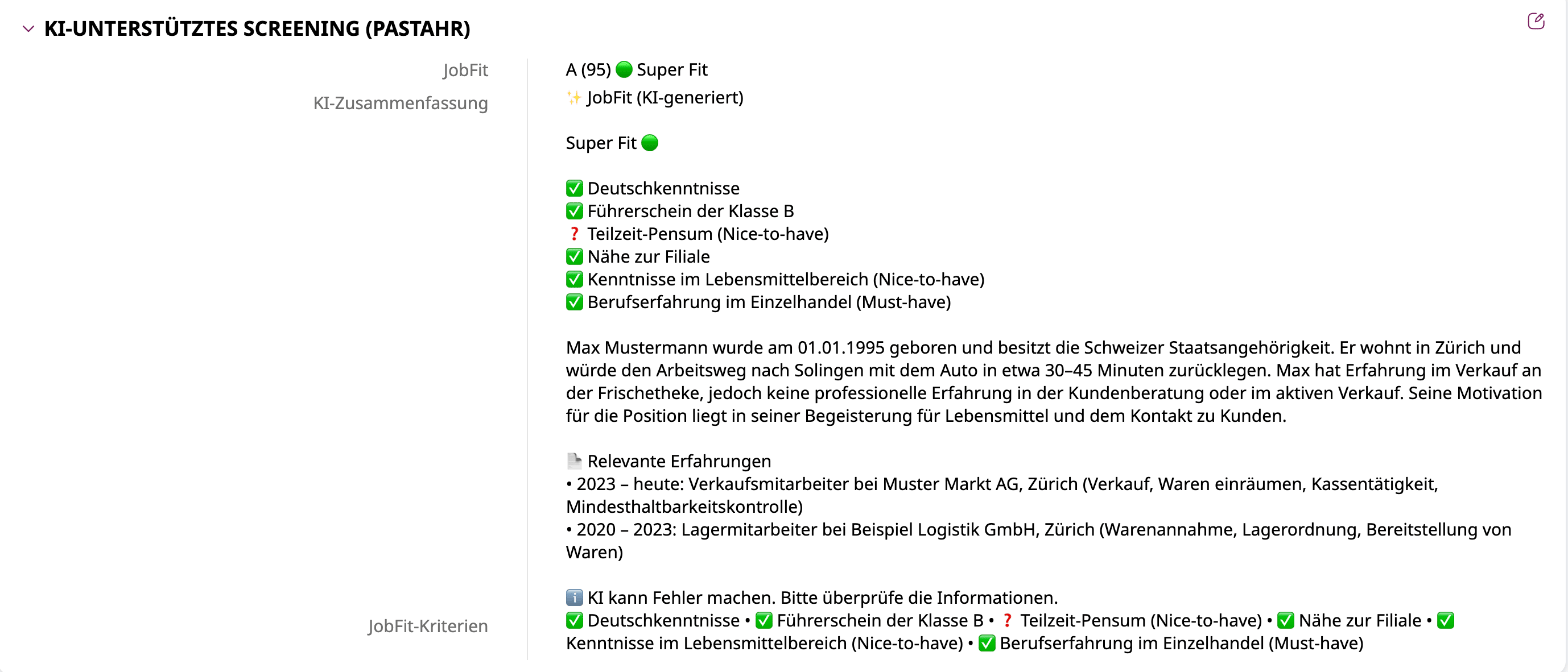
What is sent to the ATS
All fields are set up per customer, because every ATS is configured differently. The setup happens in your ATS; afterwards you let PastaHR know which fields you use.
Details per ATS
- SAP SuccessFactors
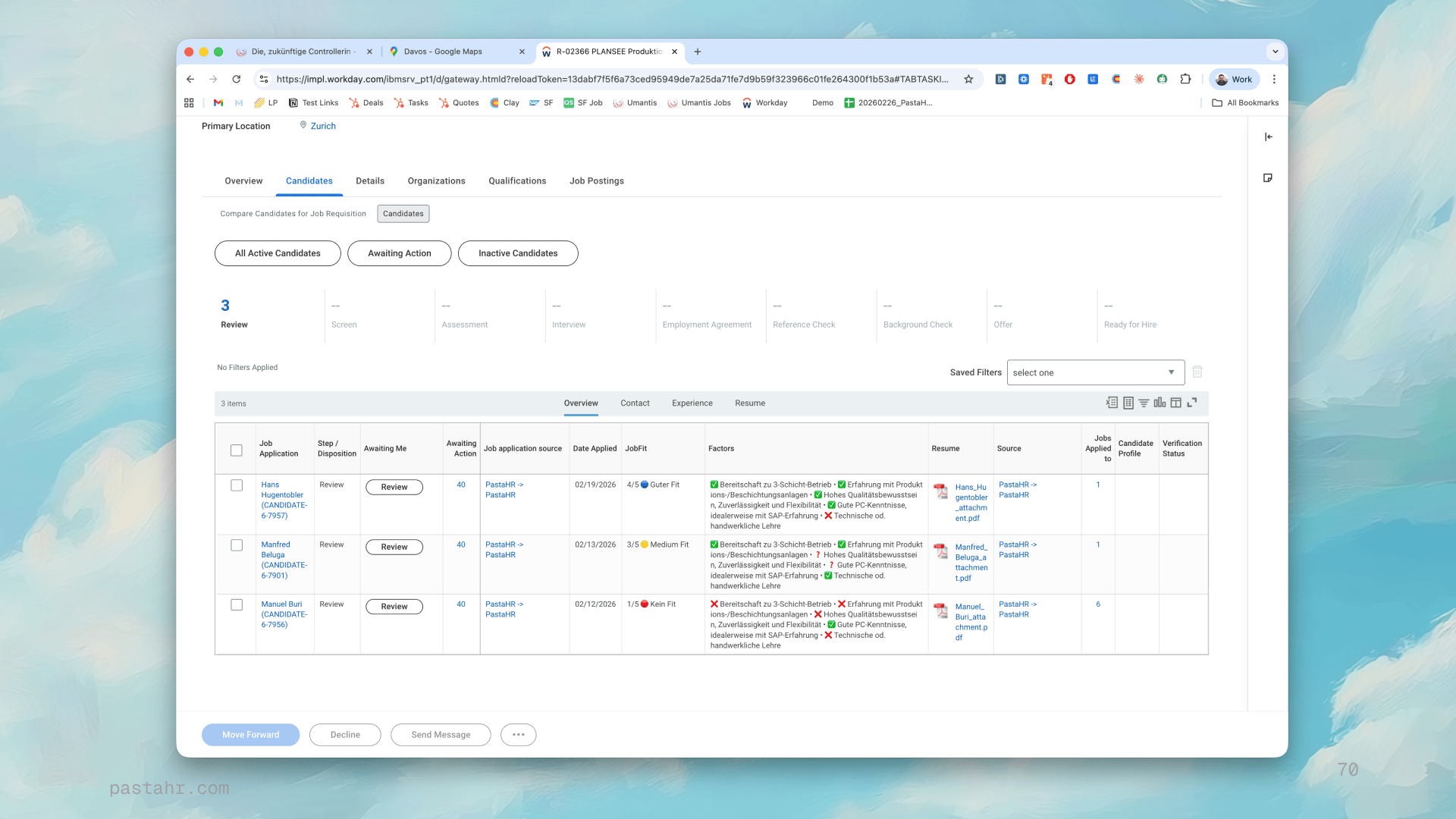
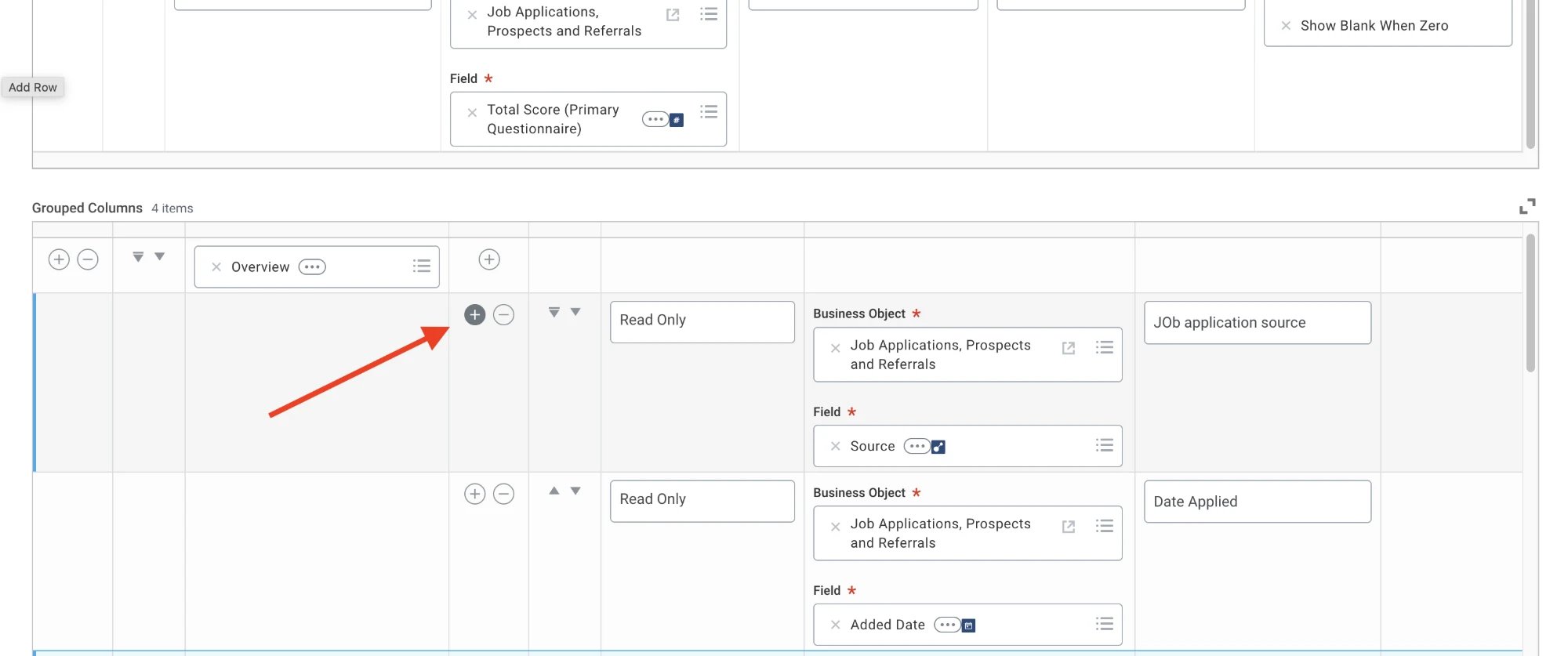
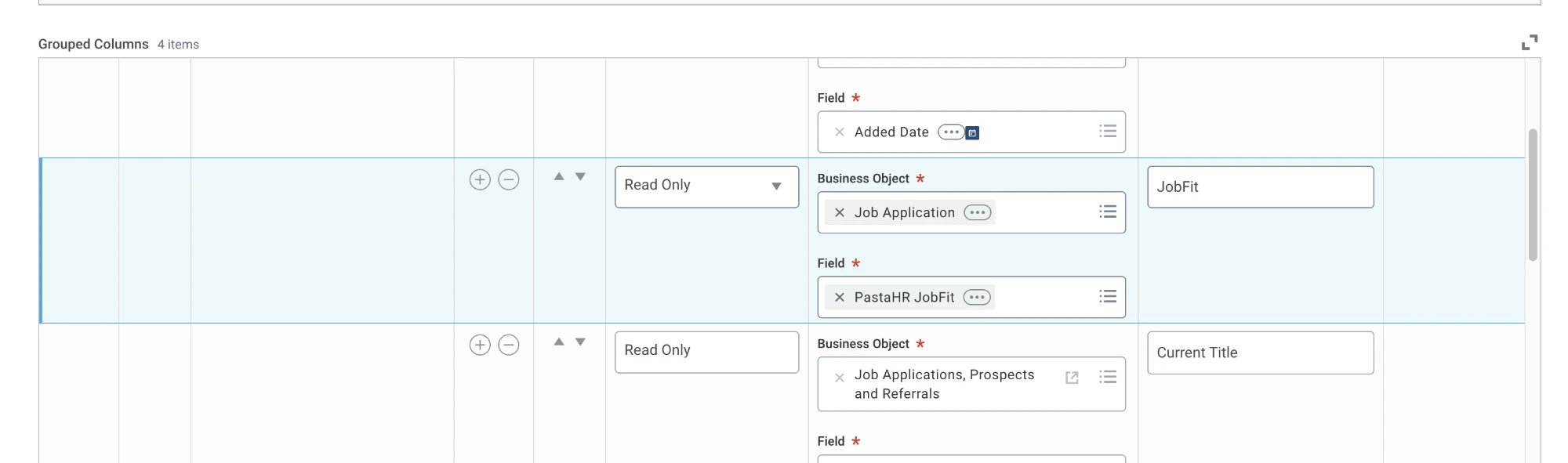
- Workday
- Umantis
- Other ATS
What it looks like
- Comment (default): JobFit score, criteria and AI summary appear as a comment on the application.
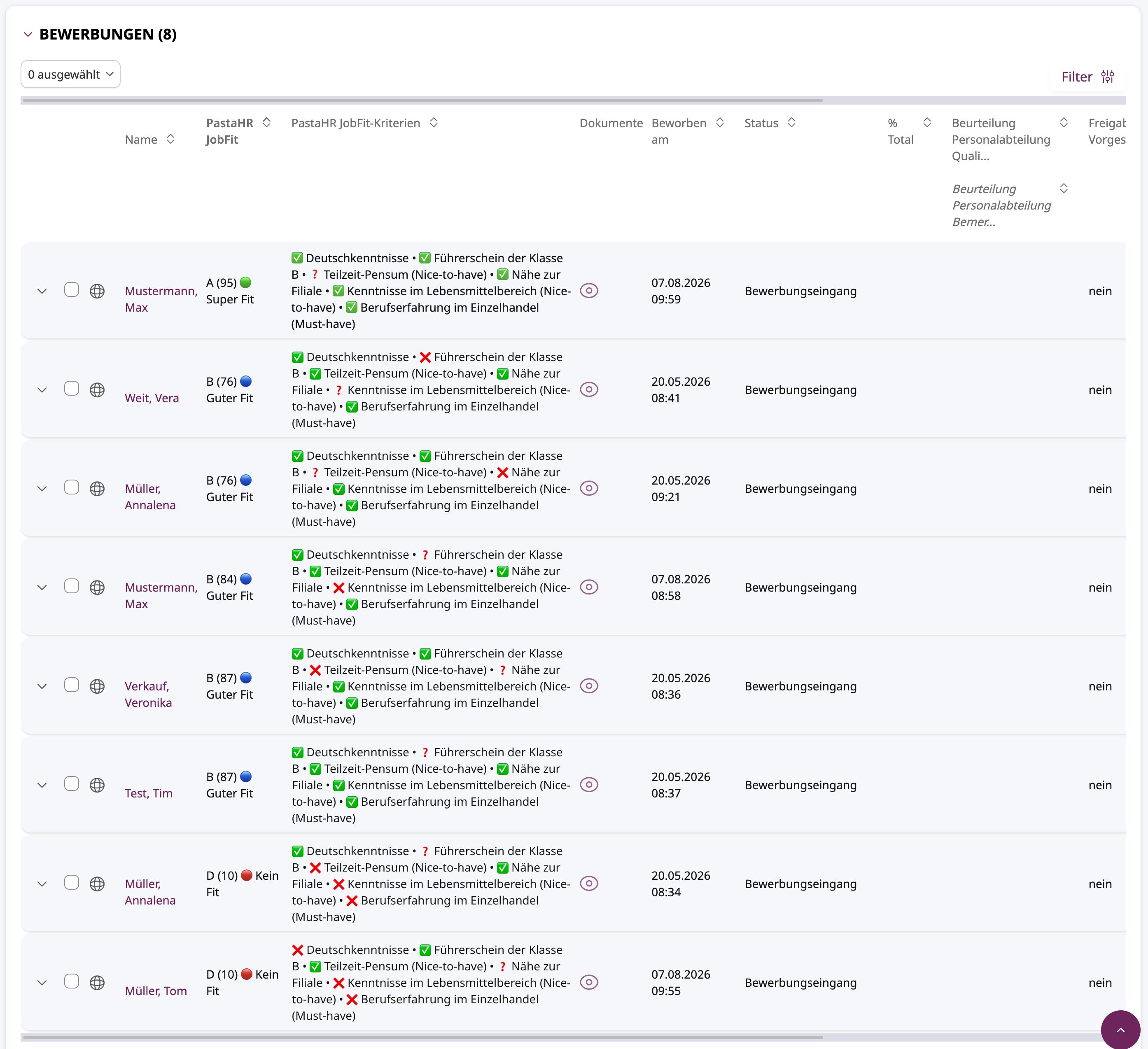
- Custom fields: If the new candidate workbench is active, score and criteria also appear as separate columns in the candidate overview. The score is sortable.
- JobFit report (PDF): Placed in an attachment field of the application that candidates can’t see, e.g. General Attachments.
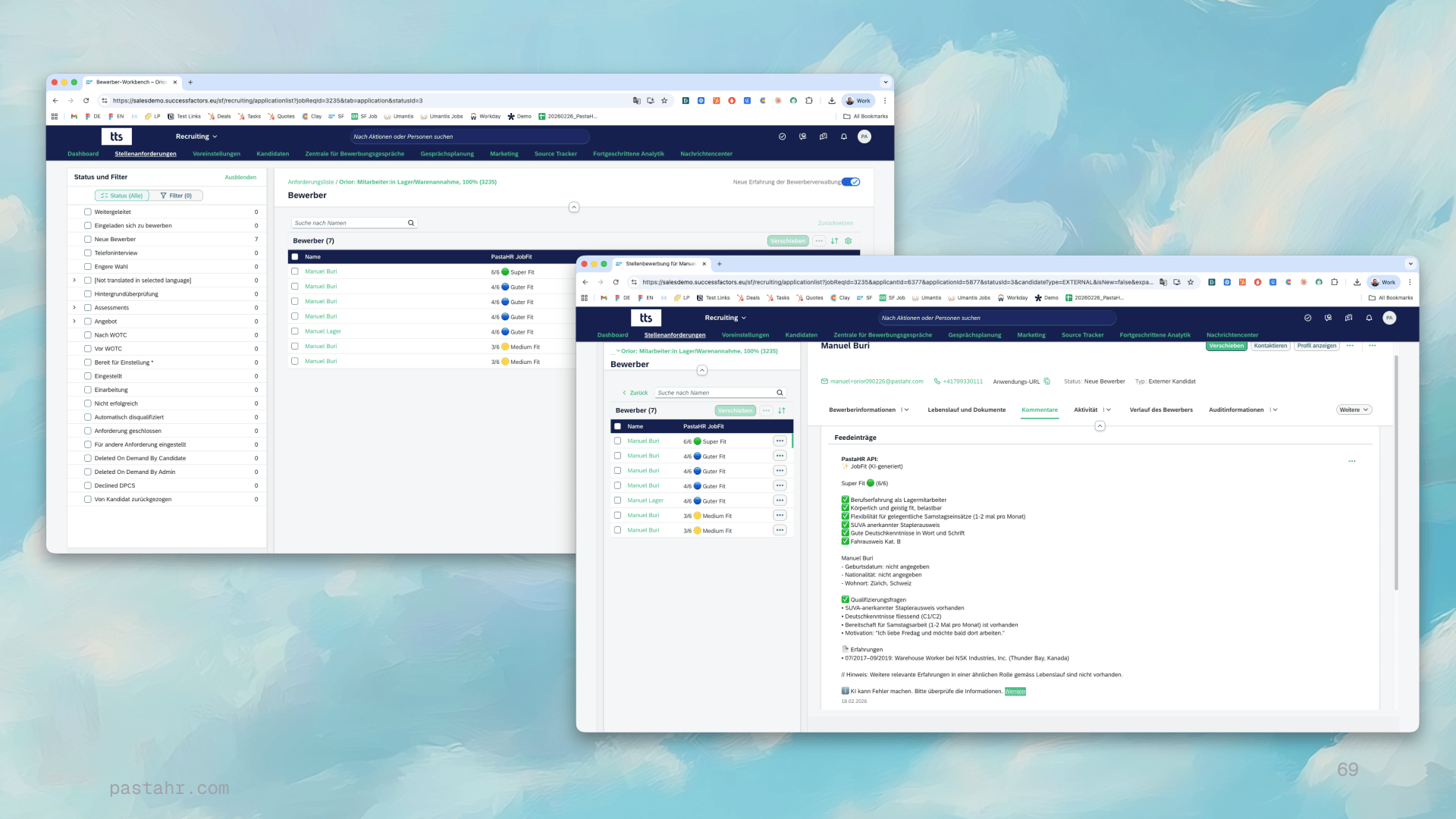
Setup
1
Create fields in the application template
Create two text fields in the job application template, e.g.
custPastahrJobFit (score) and custPastahrJobFitFactors (criteria).2
Set permissions
The integration user needs write access to both fields, in the status in which new applications arrive.
3
Show the columns in the workbench
Add both fields as columns in the candidate overview.
4
Inform PastaHR
Send the field IDs to support@pastahr.com. We activate the transfer.