> ## Documentation Index
> Fetch the complete documentation index at: https://docs.pastahr.com/llms.txt
> Use this file to discover all available pages before exploring further.
# Set Up a WhatsApp Channel
> Give PastaHR access to your Meta Business Manager so a WhatsApp account can be created under your corporate branding.
PastaHR needs access to your Meta Business Manager so a WhatsApp account can be created under your corporate branding.
The WhatsApp channel is created in your own Meta Business Portfolio. You keep full control over it and can remove PastaHR at any time. The phone number for the channel is provided by PastaHR.
## Connect to Facebook Yourself
This requires Admin rights in PastaHR (have an existing Admin in your organization add you) and Admin rights in Meta Business Manager.
Log in to PastaHR.
Go to [app.pastahr.com/settings/channels](https://app.pastahr.com/settings/channels).
Click **Continue With Facebook**.
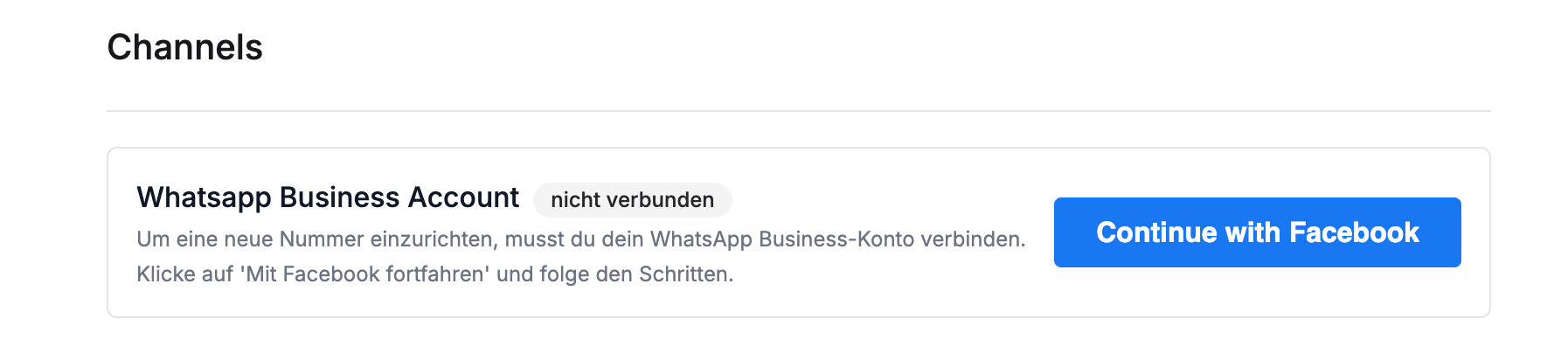 Make sure you're logged in with the right Facebook account. It needs access to the portfolio the channel should be created in. Click **Get Started**.
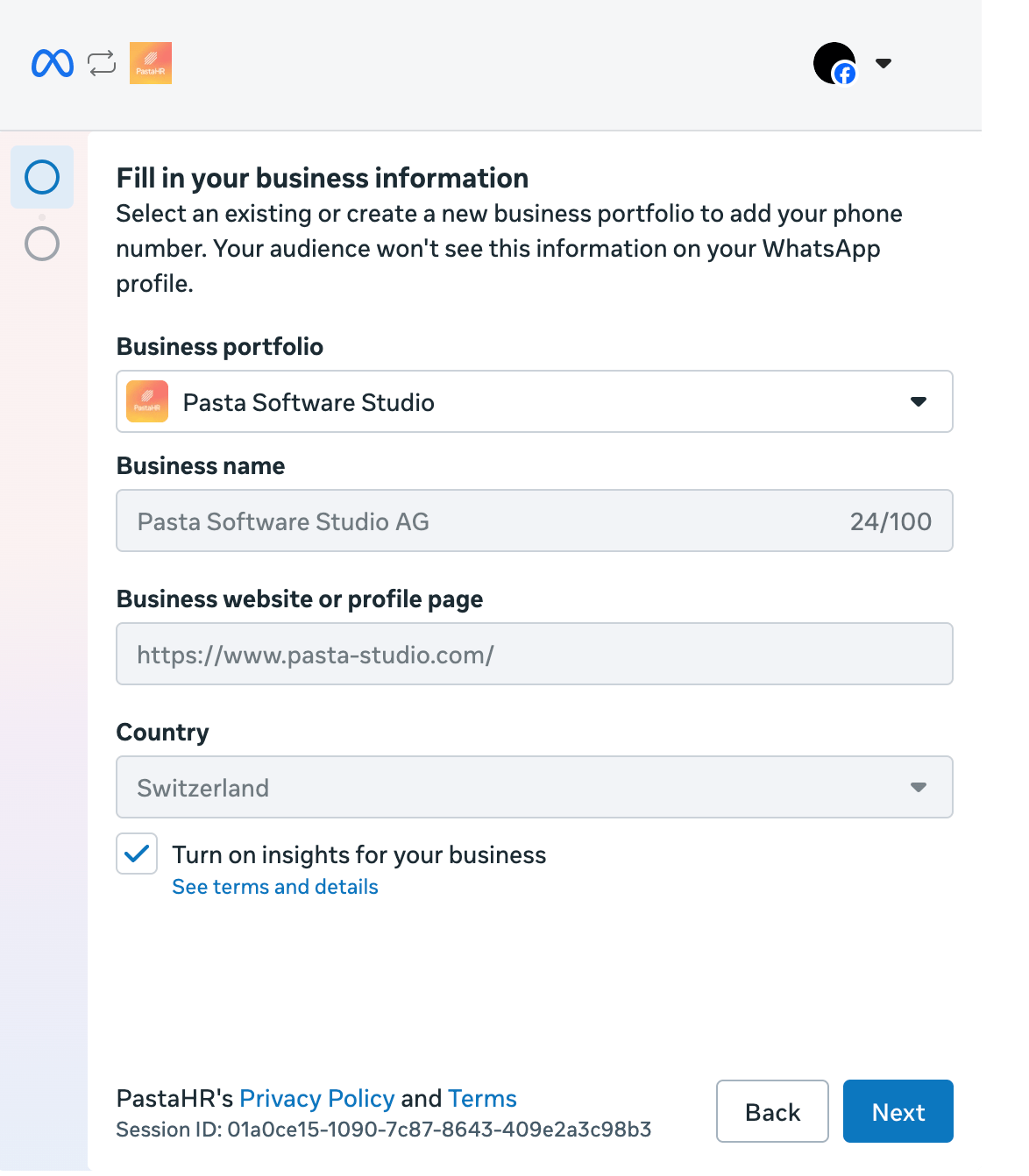
If you have access to several portfolios, select the right one and check that the information is correct.
Make sure you're logged in with the right Facebook account. It needs access to the portfolio the channel should be created in. Click **Get Started**.
If you have access to several portfolios, select the right one and check that the information is correct.
 Select the top option **Create WhatsApp Business account**.
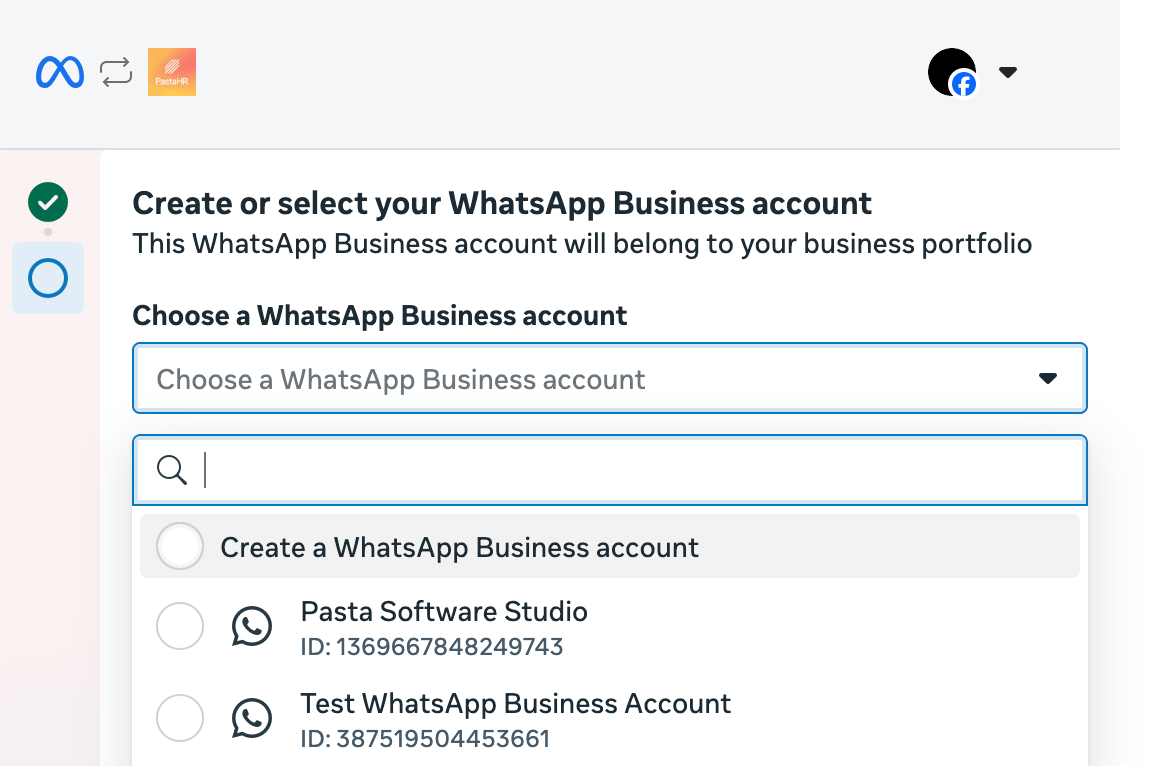 Add a name – this is only visible internally and helps with identifying the channel.
Click through the following steps at the bottom right.
Creation can take a few minutes once you're done.
On the Channels page in PastaHR, you should now see **WhatsApp Business Account connected**.
Add a name – this is only visible internally and helps with identifying the channel.
Click through the following steps at the bottom right.
Creation can take a few minutes once you're done.
On the Channels page in PastaHR, you should now see **WhatsApp Business Account connected**.