> ## Documentation Index
> Fetch the complete documentation index at: https://docs.pastahr.com/llms.txt
> Use this file to discover all available pages before exploring further.
# Connect Your Calendar for PastaHR Interview Scheduling
> Link your calendar to an interview type in PastaHR so candidates can self-book interviews based on your real-time availability and avoid conflicts.
Calendar integration is available for interview types that use **hourly (time-slot) bookings**. Full-day bookings are not supported.
## Supported Calendar Providers
Connect your Google Workspace or personal Google account to sync availability.
Connect your Microsoft 365 or Outlook account to use your existing calendar.
Connecting Your Calendar
Calendars are connected per interview type. Follow these steps for each interview type you want to enable calendar availability checking for.
Click **Interviews** in the left sidebar, then select **Types**.
Select the interview type you want to configure and click **Edit**.
In the interview type editor, navigate to the **Calendar** tab.
Click **Add Calendar**. You'll be redirected to your calendar provider's authorisation page. Sign in with the account you want to use.
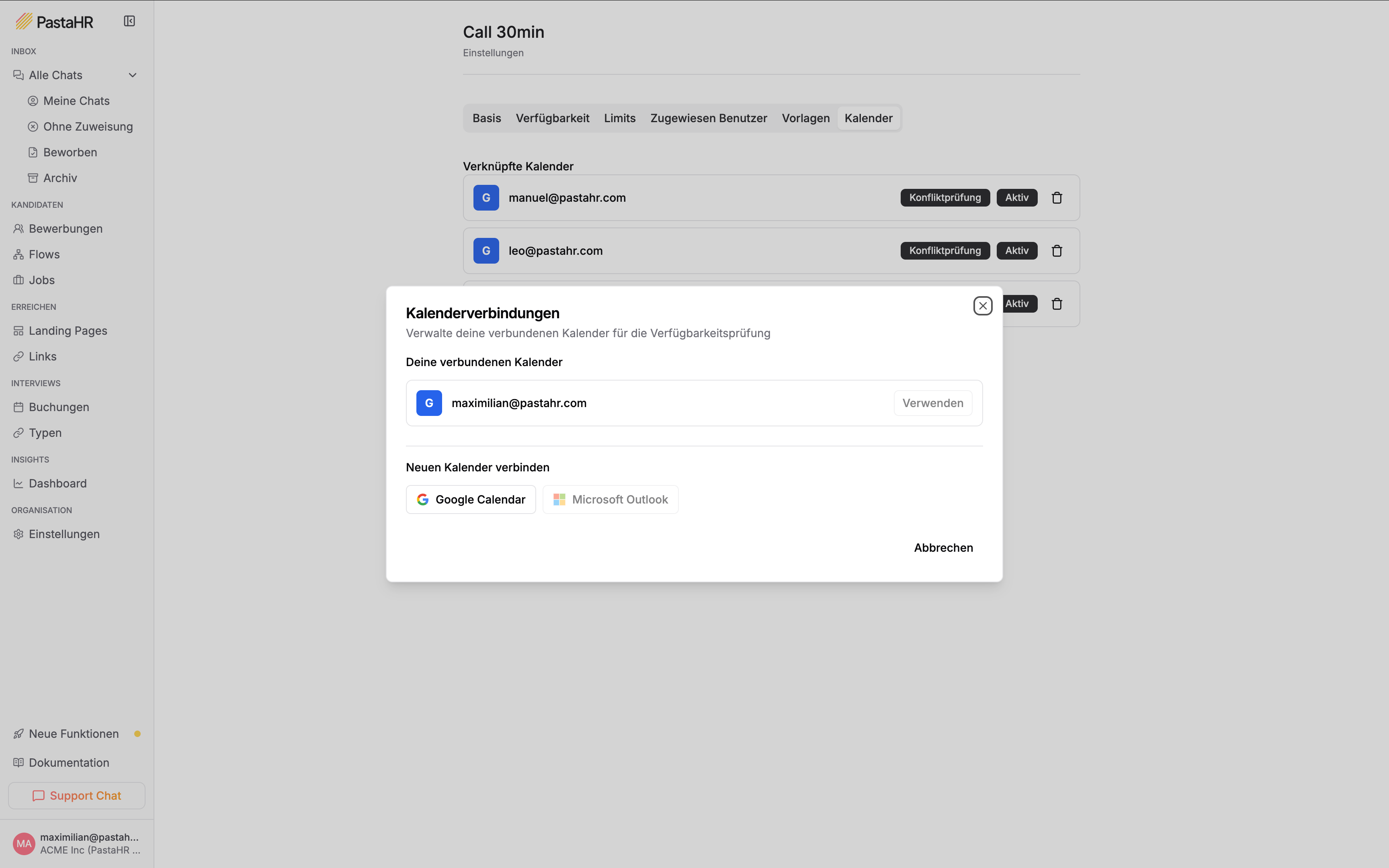 After authorising, you'll be redirected back to PastaHR. Your calendar appears as connected for this interview type. From this point on, PastaHR checks your calendar when candidates try to book this interview type, and only shows conflict-free slots.
PastaHR only requests the minimum permissions needed to read your free/busy availability and to create or update calendar events for booked interviews. PastaHR does not read the content of your existing calendar events.
## Disconnecting a Calendar
You can disconnect your calendar from an interview type at any time: **Interviews → Types**, edit the interview type, open the **Calendar** tab, remove the connected calendar.
Removing the calendar connection disables conflict detection for this type. Candidates may be offered slots that collide with your existing appointments until you reconnect a calendar.
After authorising, you'll be redirected back to PastaHR. Your calendar appears as connected for this interview type. From this point on, PastaHR checks your calendar when candidates try to book this interview type, and only shows conflict-free slots.
PastaHR only requests the minimum permissions needed to read your free/busy availability and to create or update calendar events for booked interviews. PastaHR does not read the content of your existing calendar events.
## Disconnecting a Calendar
You can disconnect your calendar from an interview type at any time: **Interviews → Types**, edit the interview type, open the **Calendar** tab, remove the connected calendar.
Removing the calendar connection disables conflict detection for this type. Candidates may be offered slots that collide with your existing appointments until you reconnect a calendar.