> ## Documentation Index
> Fetch the complete documentation index at: https://docs.pastahr.com/llms.txt
> Use this file to discover all available pages before exploring further.
# Career Page Widget: Embed PastaHR on Your Careers Site
> Embed a WhatsApp or chat apply button on your careers page. Includes setup steps for standard sites, SAP SuccessFactors, and Umantis.
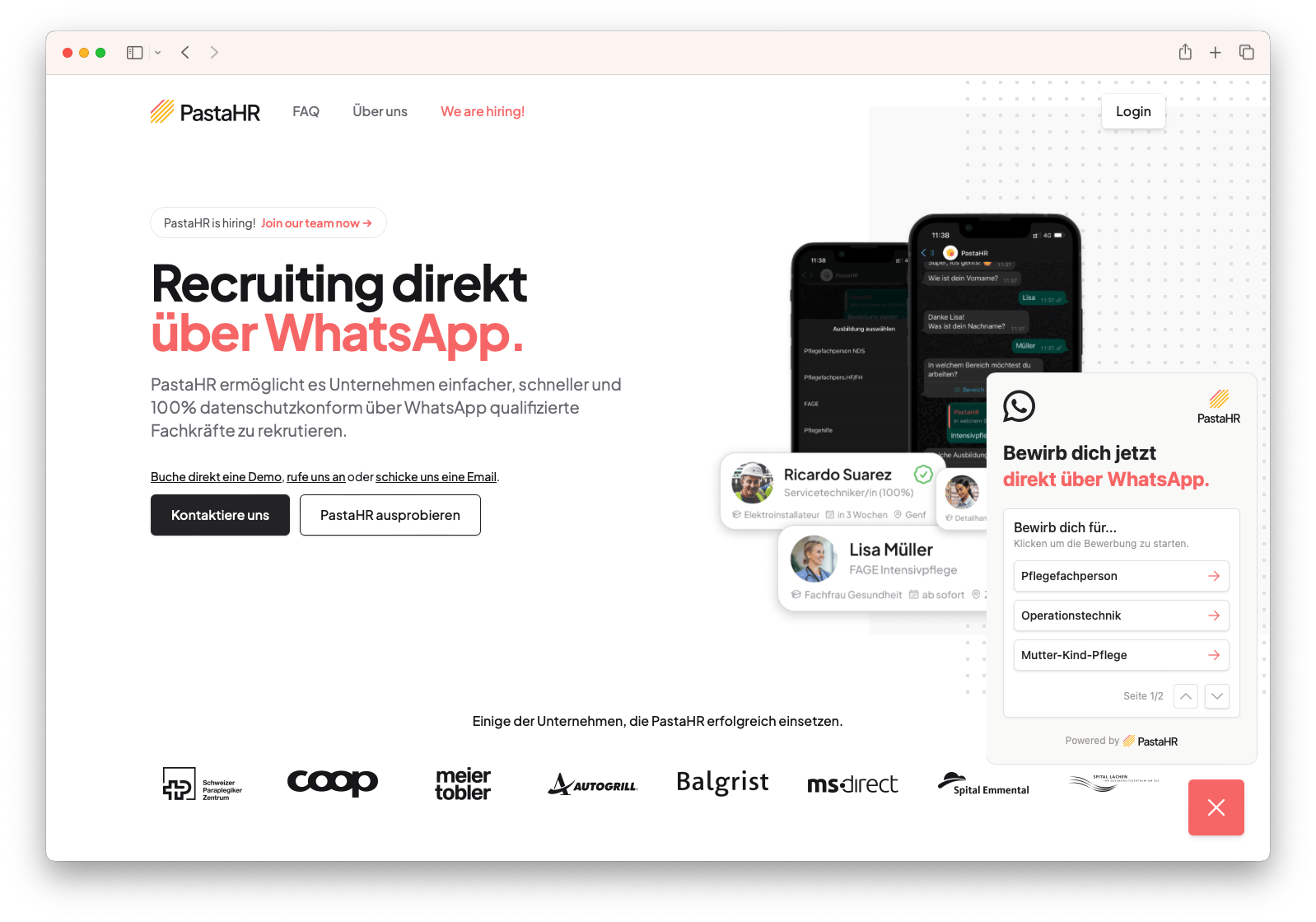 Contact the PastaHR team at [support@pastahr.com](mailto:support@pastahr.com) to request your organisation's widget script. PastaHR provides a snippet with your unique `ORGANISATION_TOKEN`:
```html theme={null}
```
If you'd like the widget to match your brand, send PastaHR your primary colour (HEX), accent colour (HEX), subtitle colour (HEX), and a link to your logo. PastaHR applies the branding to your widget.
Paste the provided script inside the `` of the careers page template. The widget renders in the bottom-right corner of the page and lists all available application links for your open jobs.
Once the script is embedded and the page is published live, the widget automatically displays your open jobs with WhatsApp application links.
The widget sets no cookies, so no changes to your privacy consent settings are required. It is fully responsive and optimised for desktop and mobile.
Contact the PastaHR team at [support@pastahr.com](mailto:support@pastahr.com) to request your organisation's widget script. PastaHR provides a snippet with your unique `ORGANISATION_TOKEN`:
```html theme={null}
```
If you'd like the widget to match your brand, send PastaHR your primary colour (HEX), accent colour (HEX), subtitle colour (HEX), and a link to your logo. PastaHR applies the branding to your widget.
Paste the provided script inside the `` of the careers page template. The widget renders in the bottom-right corner of the page and lists all available application links for your open jobs.
Once the script is embedded and the page is published live, the widget automatically displays your open jobs with WhatsApp application links.
The widget sets no cookies, so no changes to your privacy consent settings are required. It is fully responsive and optimised for desktop and mobile.