> ## Documentation Index
> Fetch the complete documentation index at: https://docs.pastahr.com/llms.txt
> Use this file to discover all available pages before exploring further.
# AI Screening with JobFit: How Candidate Scoring Works
> Learn how PastaHR's JobFit AI screens candidates during the application chat and surfaces a colour-coded match score for every applicant.
PastaHR's JobFit feature automatically screens every application while the candidate goes through the application chat, whether on the web or via WhatsApp. The AI evaluates answers, uploaded documents, and personal details in real time and calculates a JobFit score as soon as the application is complete. No manual pre-screening step is needed.
JobFit is a decision-support tool, not a decision-maker. The AI doesn't reject anyone on your behalf, the hiring decision is always made by you and your team.
## Configuring a JobFit Profile
* A JobFit profile is the list of criteria the AI uses to evaluate applications for a role, similar to a pre-screening checklist.
* Each factor consists of a **name** (e.g. "Good German language skills") and a **description** (e.g. "Candidate has at least C1 German proficiency").
* The AI evaluates each factor independently, so you can see which criteria a candidate met or missed, not just their overall score.
* If no profile is configured manually, PastaHR automatically generates one based on the job description. You can refine it at any time.
## Customising JobFit Factors
In the PastaHR web app, navigate to **Jobs** and select the job.
Here you'll see the current list of factors, including any auto-generated profile.
Add, edit, or remove factors. Each description should be precise and something the AI can evaluate.
Save the profile. Existing applications for this job will then show **Unknown** until you click **Re-evaluate applications** in the job settings.
Admins can edit JobFit profiles for all jobs. Recruiters can only edit profiles for jobs they're assigned to in the ATS or in PastaHR.
### Tips for Good Factors
* **Phrase it as a yes/no criterion:** every factor must be strictly checkable and answerable clearly as met or not met. Vague factors like "Is motivated" can't be reliably evaluated by the AI.
* **Be precise:** "Candidate has at least 3 years of customer-facing experience in retail" instead of "Experience with customers".
* **Focus on verifiable information:** avoid factors around soft skills, motivation, etc.
## Understanding the JobFit Score
All factor scores are combined into a single, deterministic JobFit result.
**> 90%**, the candidate meets most of your defined criteria.
**> 65%**, the candidate meets most criteria well.
**> 45%**, the candidate meets some criteria.
**≤ 45%**, the candidate doesn't meet enough of your defined criteria.
## Traceability
For every application, PastaHR shows a rationale for each factor explaining why the AI classified it as met, not met, or not assessable.
From the three-dot menu in the JobFit view, you can:
* **Download PDF:** downloads the rationale and sources for all factors as a PDF.
* **JobFit Profile:** jumps directly to the job's factors to manage them (see [Customising JobFit Factors](#customising-jobfit-factors)).
## When JobFit Shows "Unknown"
* The AI was unable to evaluate more than 50% of the factors.
* The JobFit profile was edited after the evaluation. Existing results are then marked as Unknown, since the new criteria don't apply retroactively.
After changing a profile, click **Re-evaluate applications** in the job settings to apply the new criteria to existing applications.
## Viewing Results in Your ATS
The JobFit score and AI summary integrate seamlessly with your existing ATS.
Available as a standard comment by default. If the new candidate workbench is active in your SuccessFactors account, JobFit can additionally appear as a sortable custom field in the candidate overview. Let the PastaHR team know to enable this.
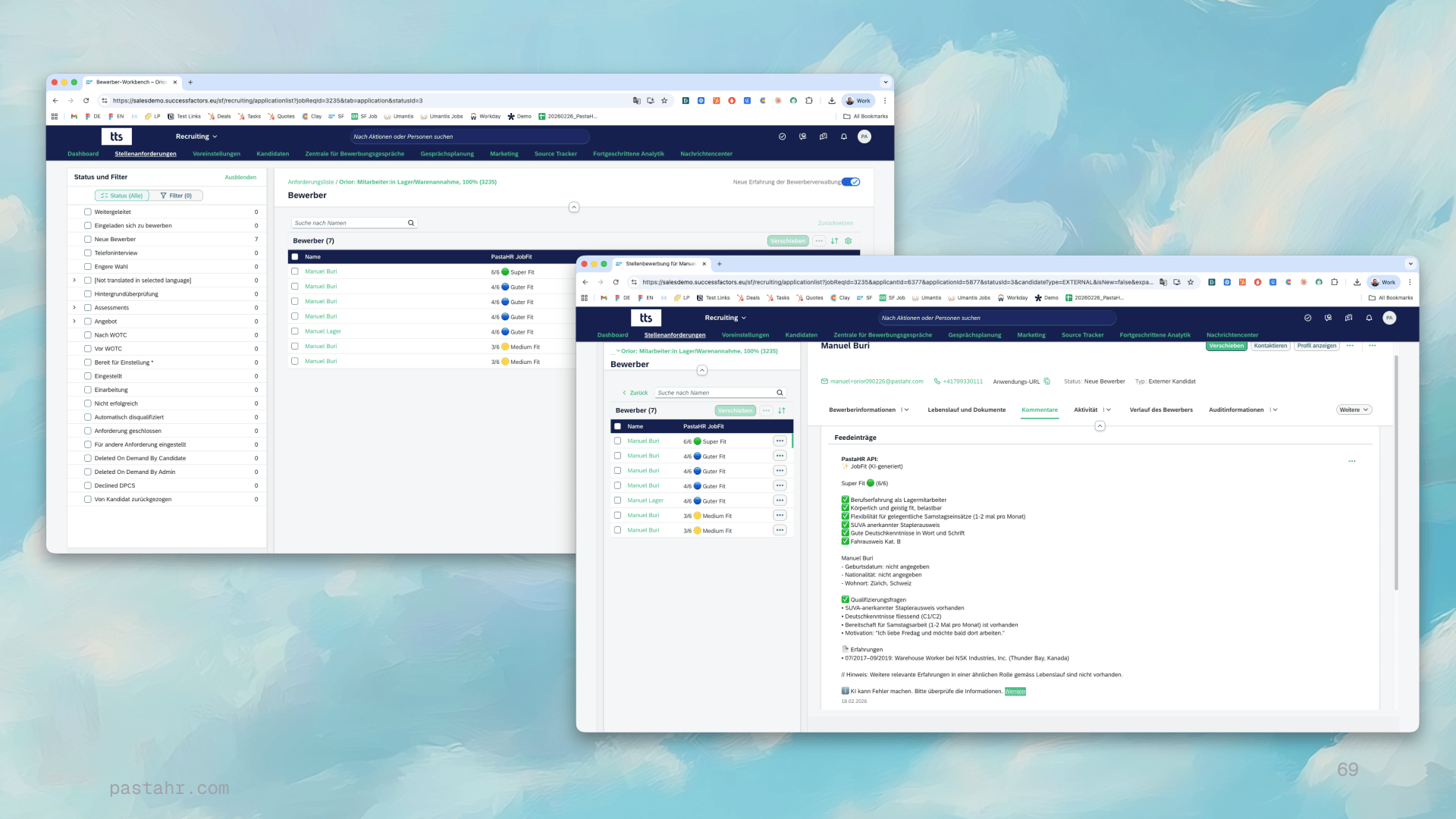 Integration via two custom fields for JobFit and the AI summary. Contact us for setup.
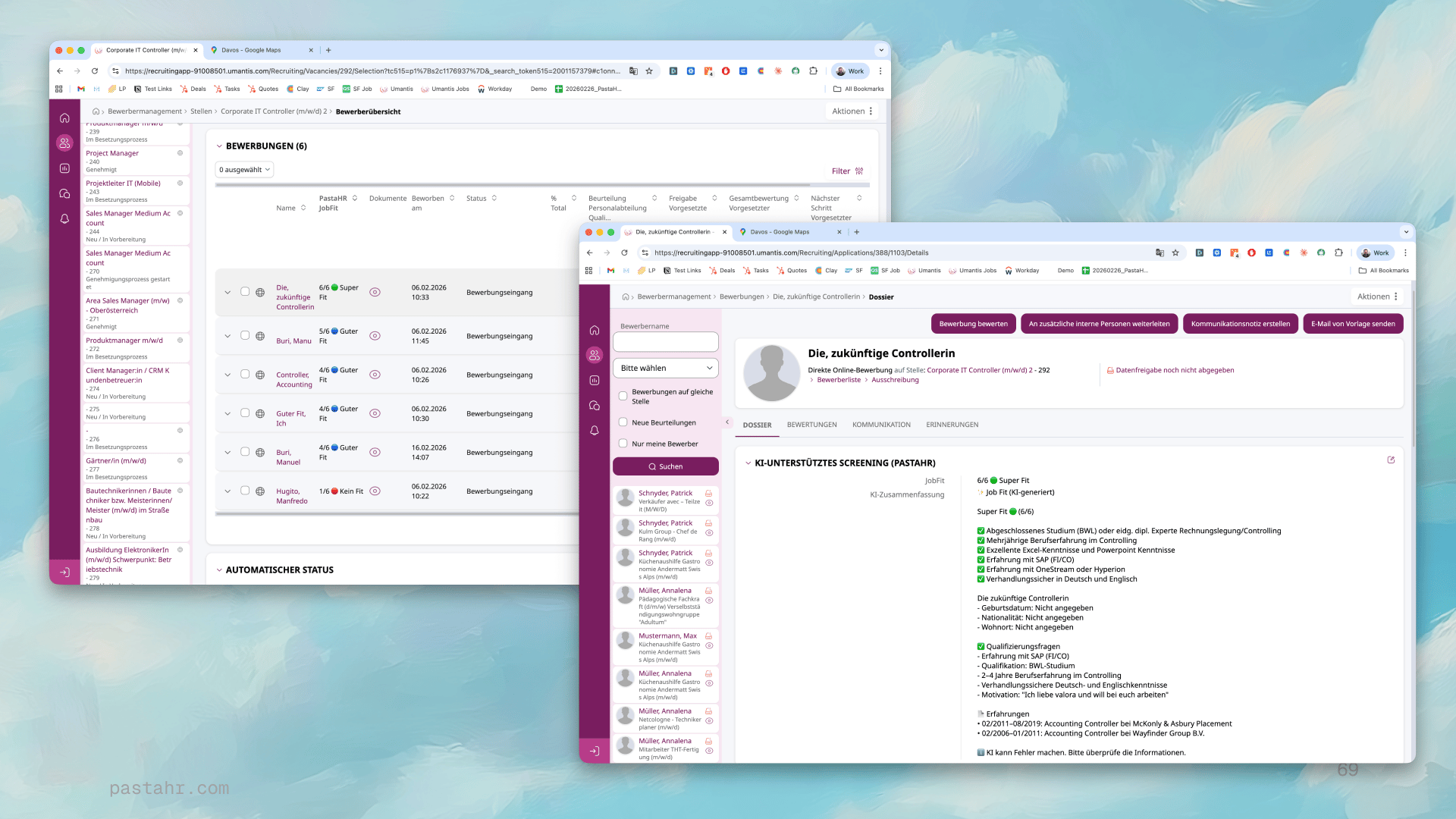 Integration via two custom fields. Contact the PastaHR team to configure this for your organisation.
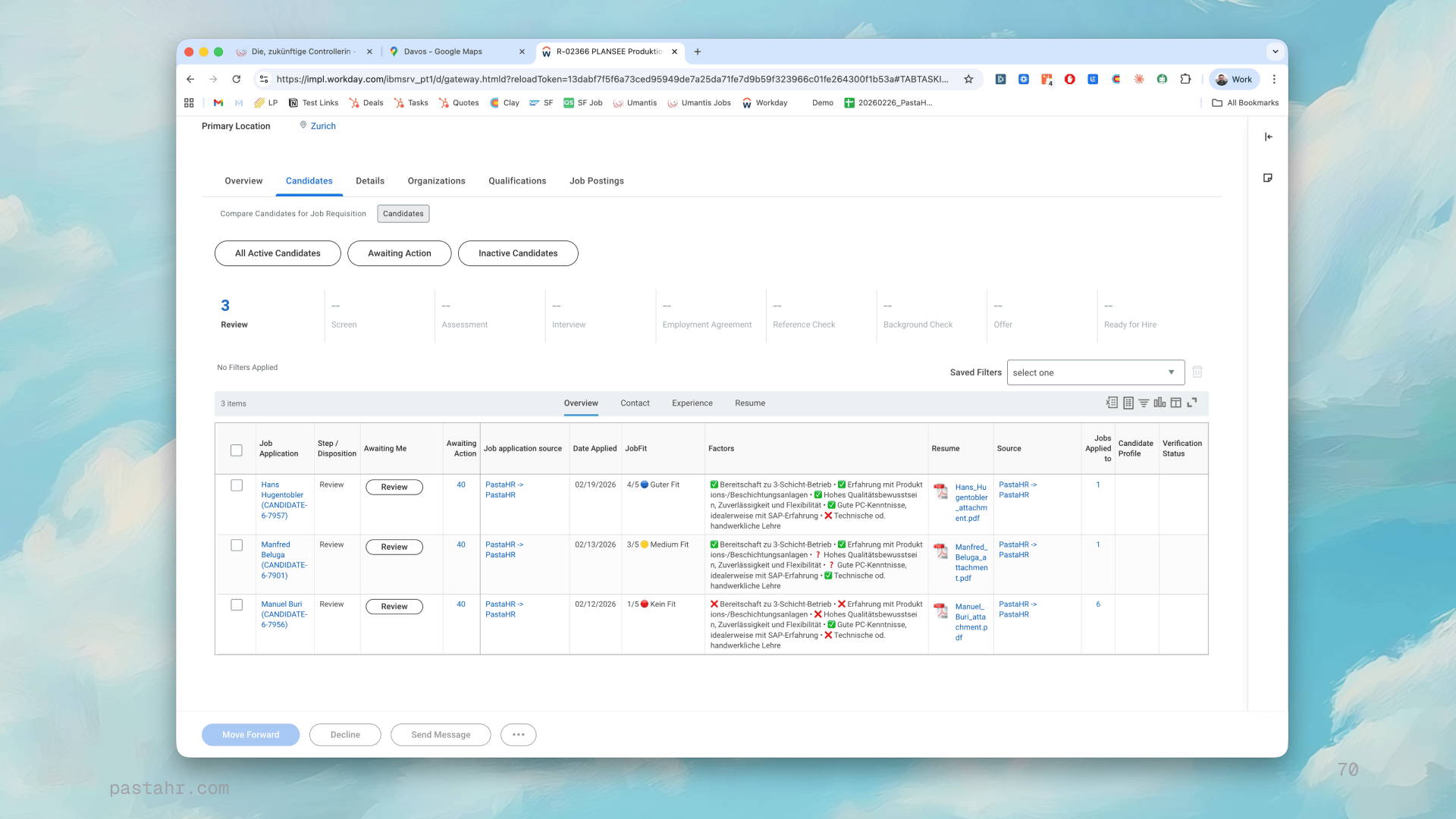 PastaHR integrates with over 40 ATS platforms. JobFit and the AI summary can be displayed in most of them, contact us for details.